Your personal profile settings can be found on the bottom left corner of your dashboard. These settings affect how you appear on the dashboard, live-chat widget, and all external communication emails.
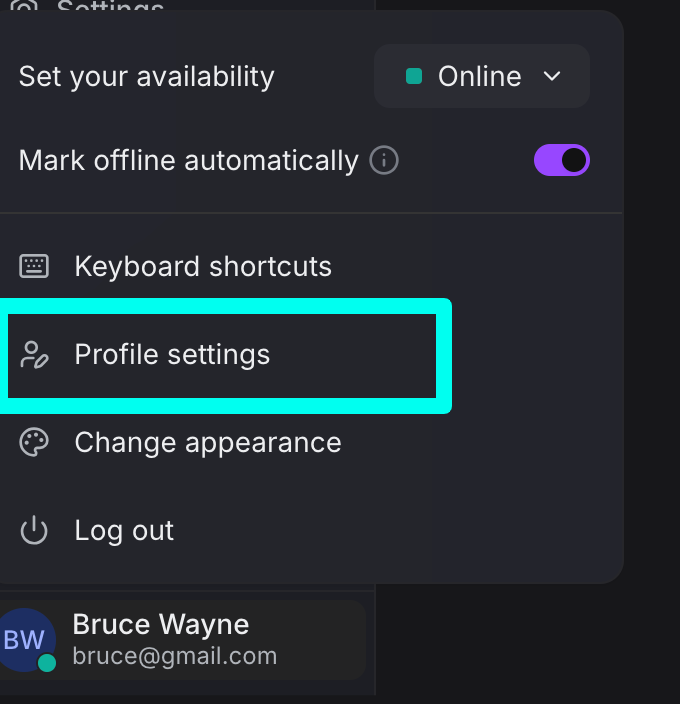
Update your Agent profile
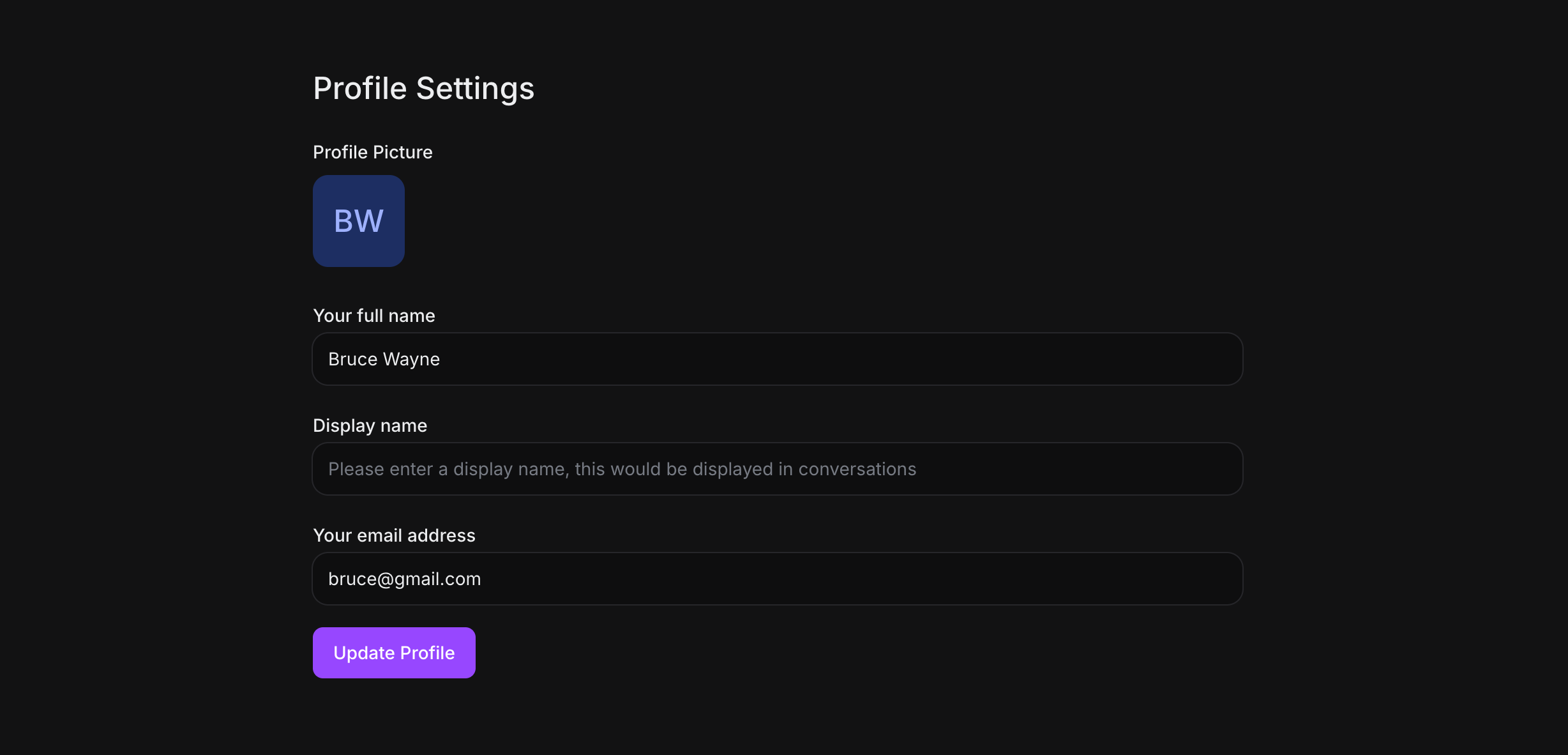
Profile Image
-
Upload a headshot or avatar
-
If left empty, defaults to your Gravatar
Full Name
-
Example: "John Hopkins"
-
Used in all communications
Display Name
-
Example: "John H."
-
Shown in the chat widget
Email Address
-
Used for login and notifications
-
Important: If you update your email address, the system will log you out
Set your omnichannel personal message signature
You can set a personal signature that appears in your messages. For detailed instructions, see our separate guide on setting up message signatures.
Set/reset your password
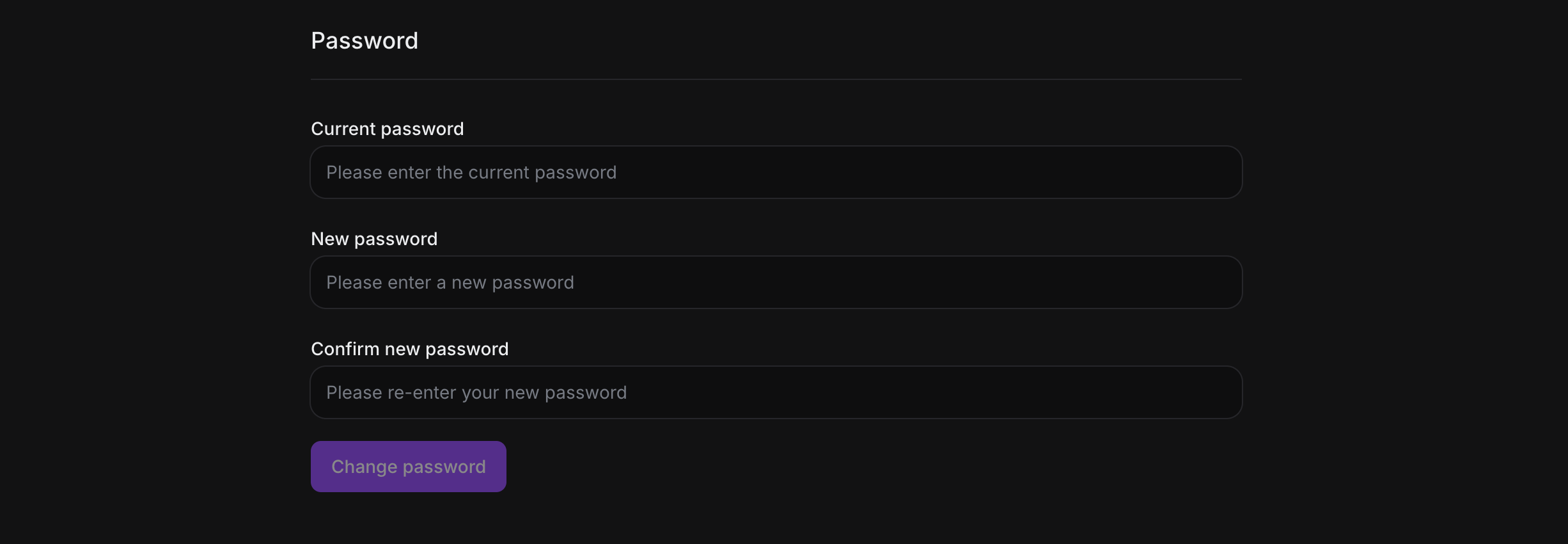
To change your password:
-
Enter your current password
-
Enter your new password
-
Confirm your new password
Password Requirements:
-
At least one uppercase character (A-Z)
-
At least one numeric character (0-9)
-
At least one special character (!@#$%&*()_+-=[]{}|'"/.,<>:;?~)
Choose how you want to send messages
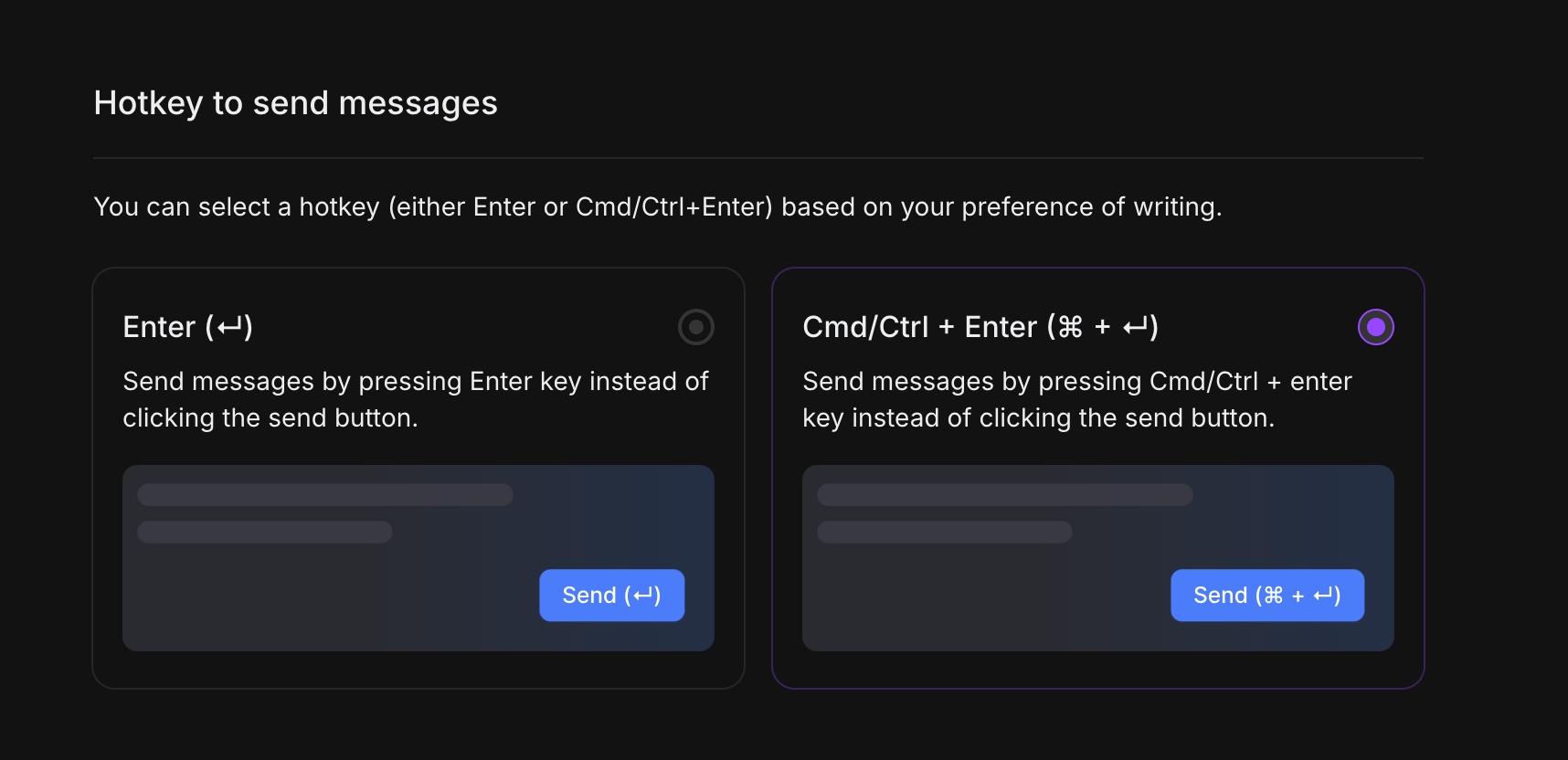
Select your preferred hotkey for sending messages:
-
Enter - Press Enter to send
-
Cmd/Ctrl+Enter - Press Cmd (Mac) or Ctrl (Windows/Linux) + Enter to send
Saving Changes
After making any changes, click "Update Profile" to save. You'll see a confirmation message when your profile is successfully updated.