Teams let you organize your agents into groups based on their responsibilities. A user can be part of multiple teams. You can assign conversations to a team when you are working collaboratively.
Steps to Add Teams
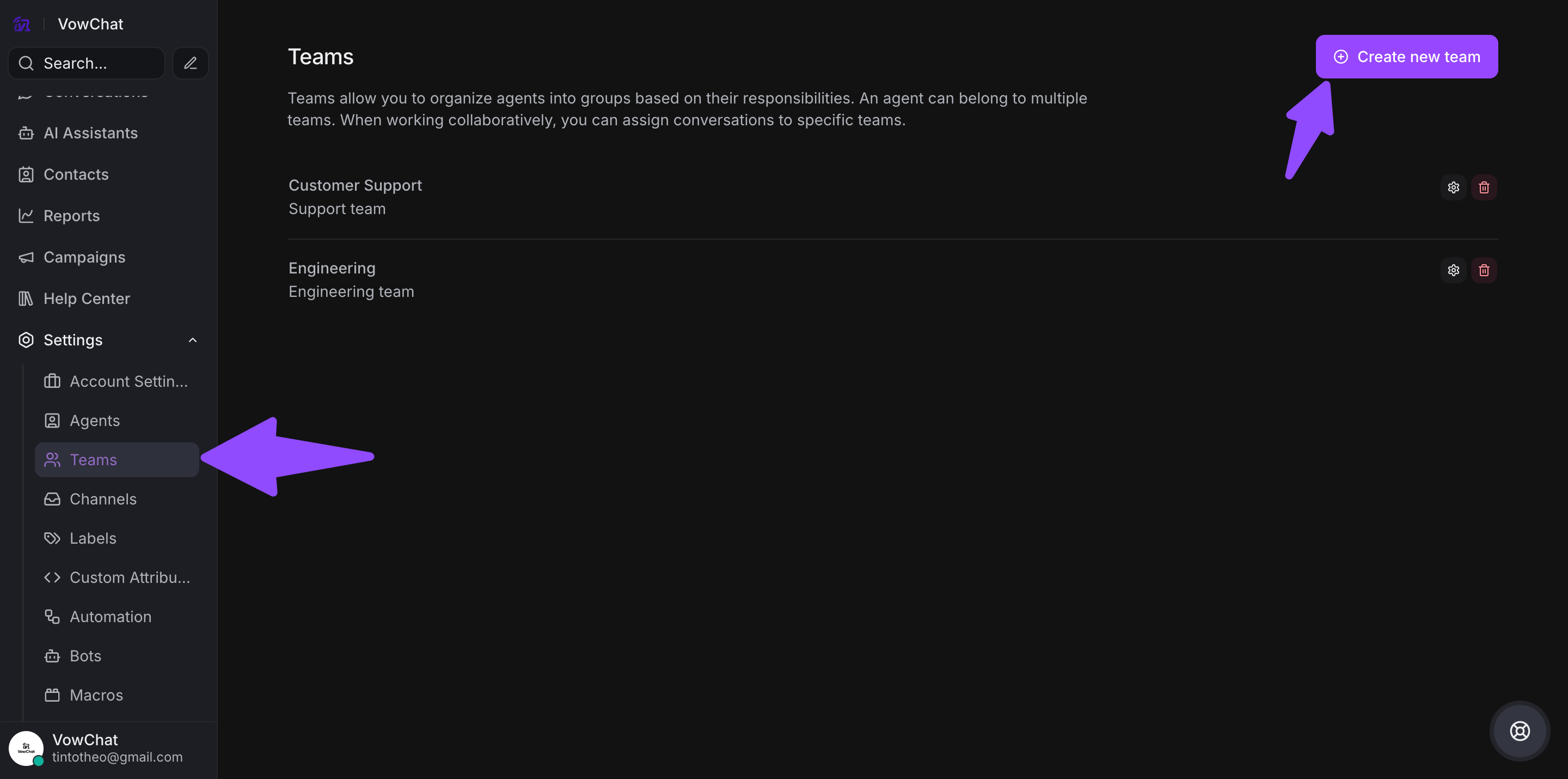
Step 1. Navigate to Settings → Teams → Create new team.
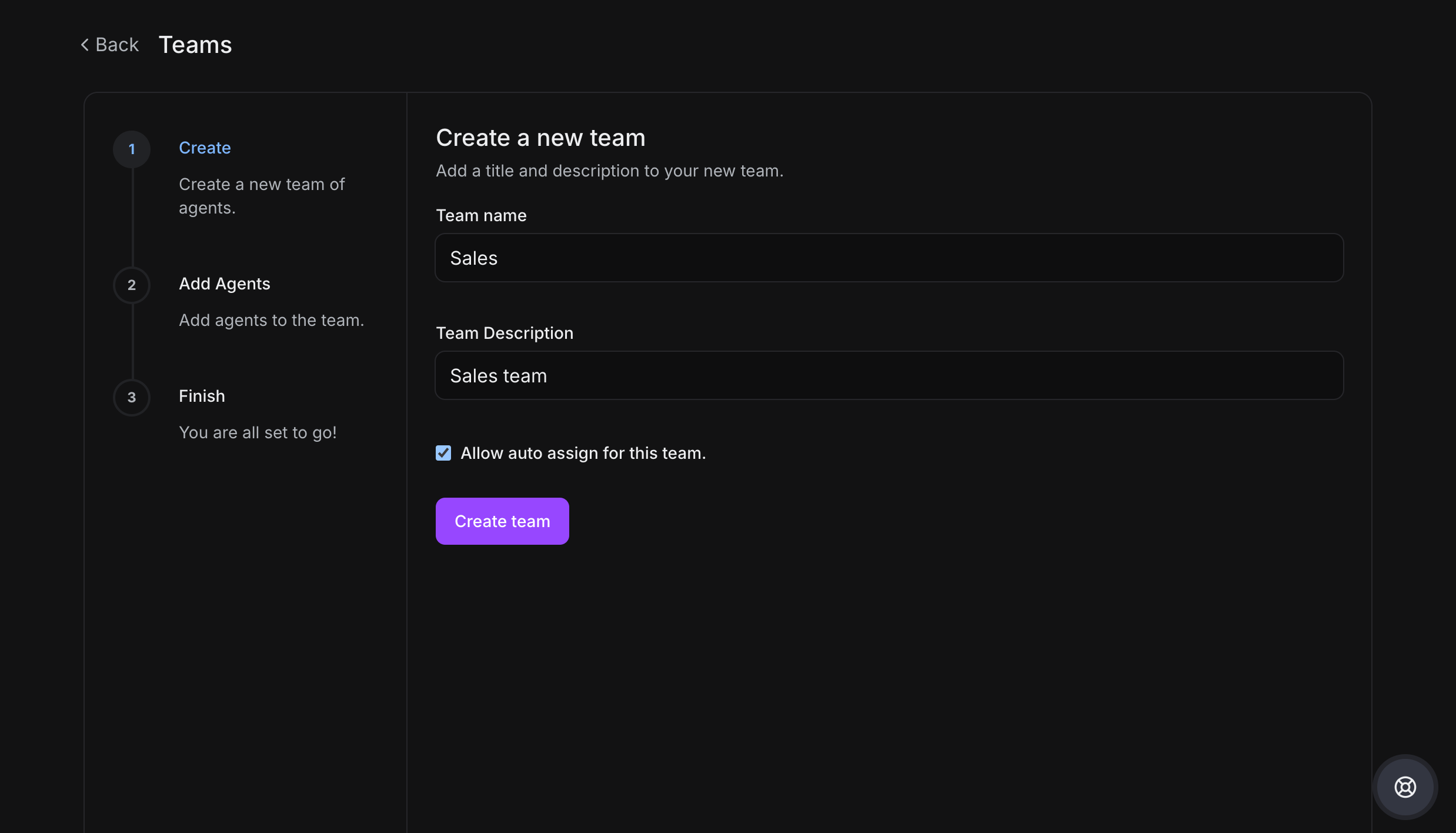
Step 2. Create team details:
-
Team Name: Assign a name (e.g., Sales, Support, Engineering)
-
Team Description: Brief explanation of team's purpose
-
Auto assign checkbox: Enable to automatically assign conversations to this team
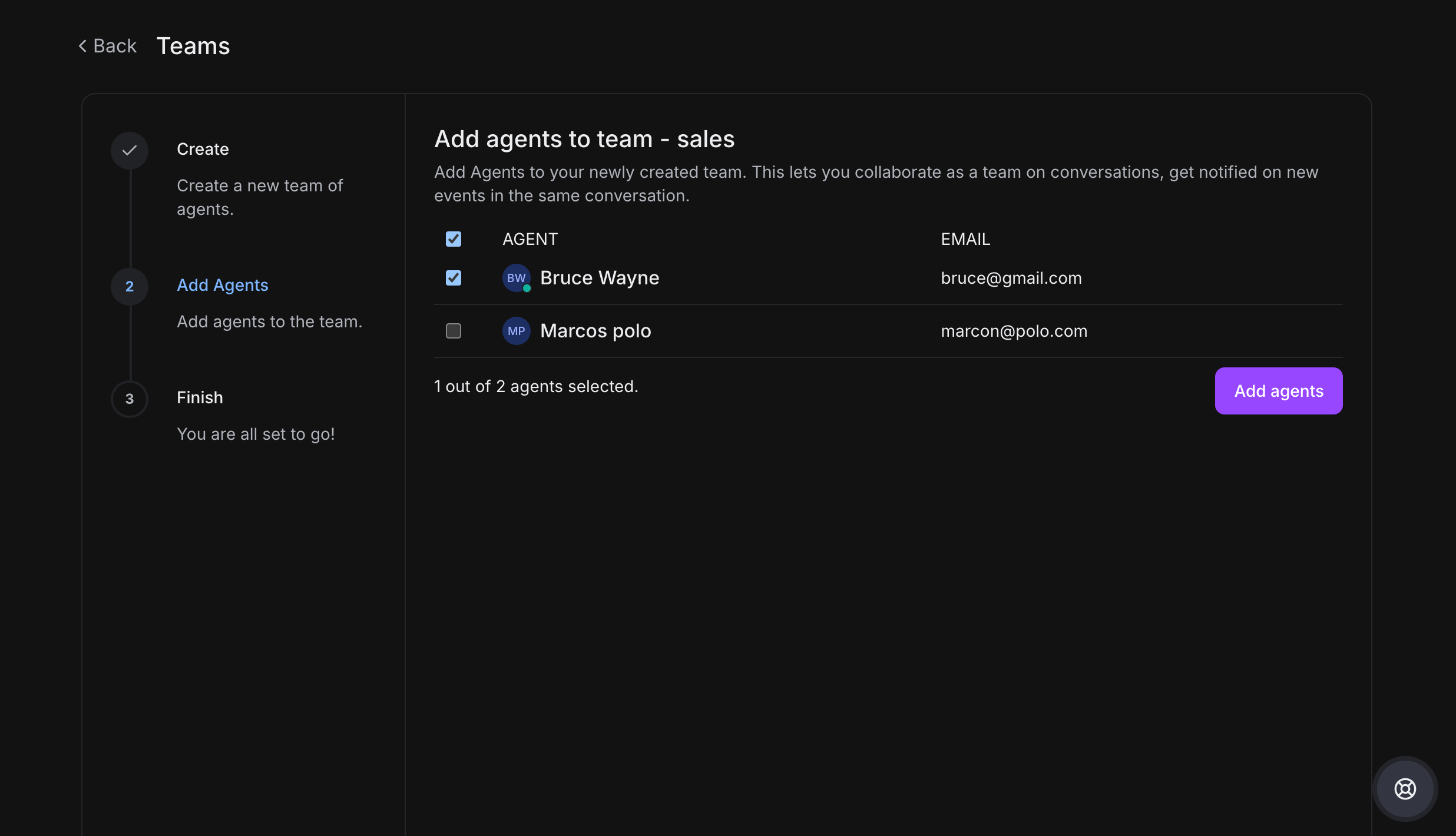
Step 3. Add agents to the team:
-
Select agents who will be part of this team by clicking the checkboxes
-
Click "Add Agents" to confirm
-
Only selected agents will see and work with these teams
-
Agents can be part of multiple teams
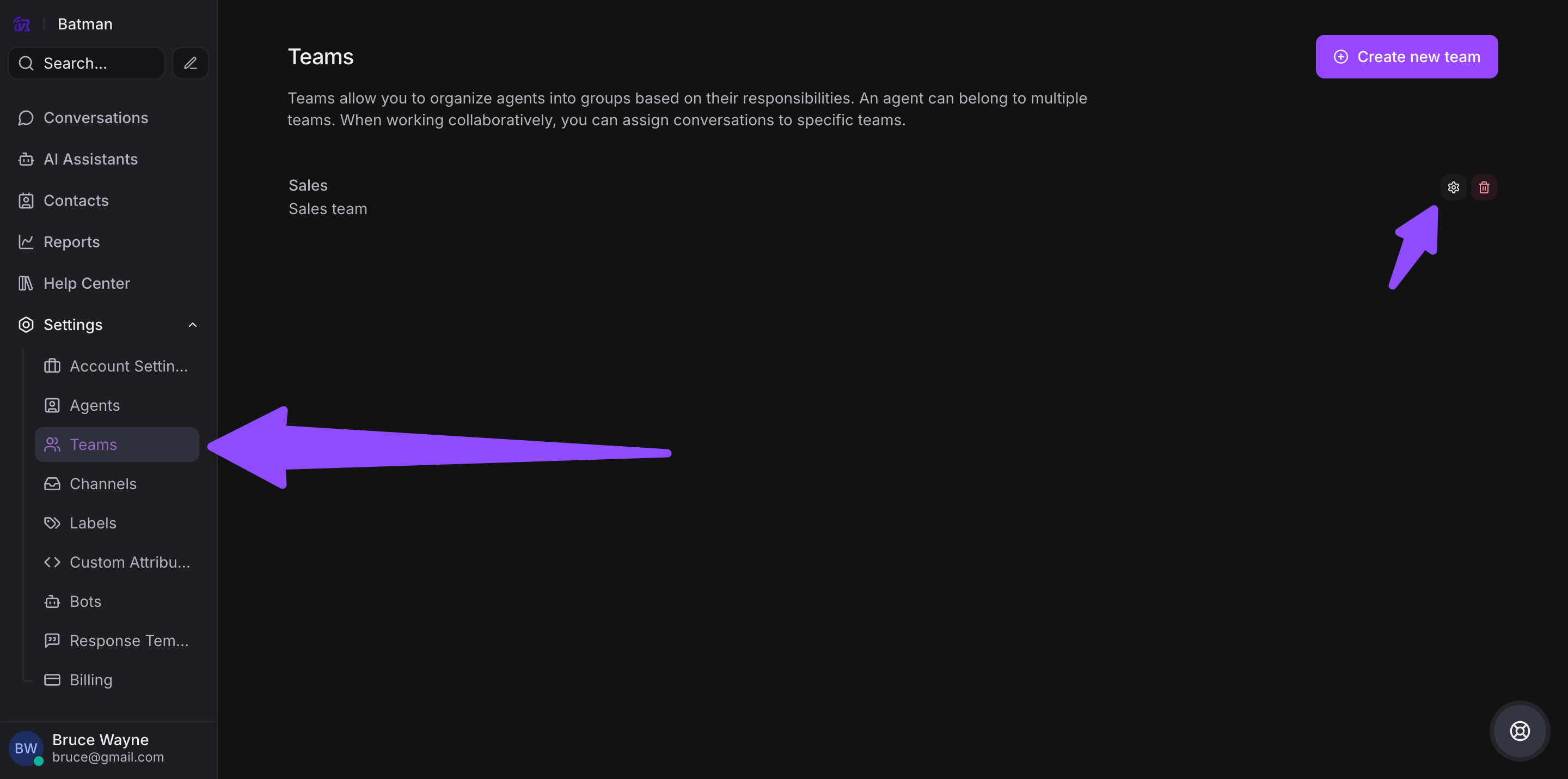
Step 4. Finish team creation. Your new team will now appear in the teams list.
Modifying or Deleting Teams
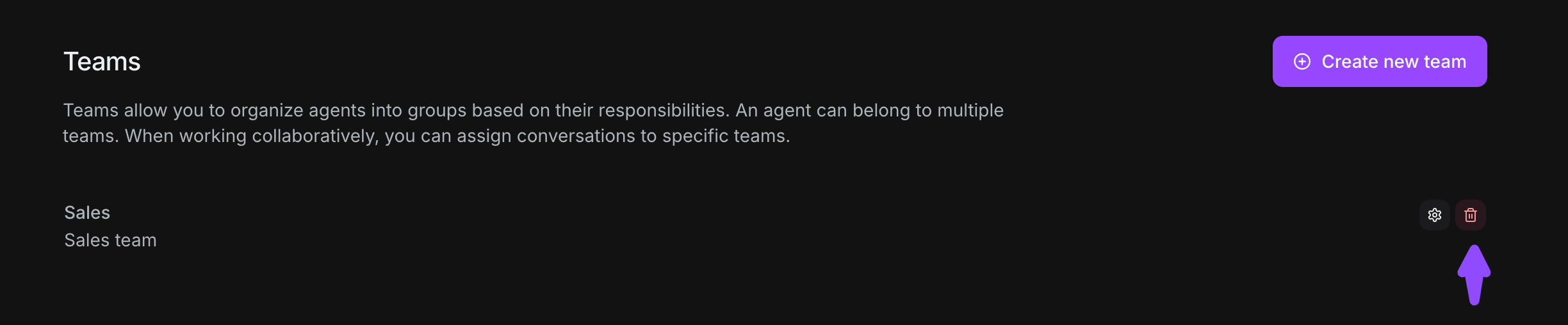
Step 1. Navigate to Settings → Teams
-
Use the edit icon (pencil) to modify team details
-
Use the delete icon (red cross) to remove a team
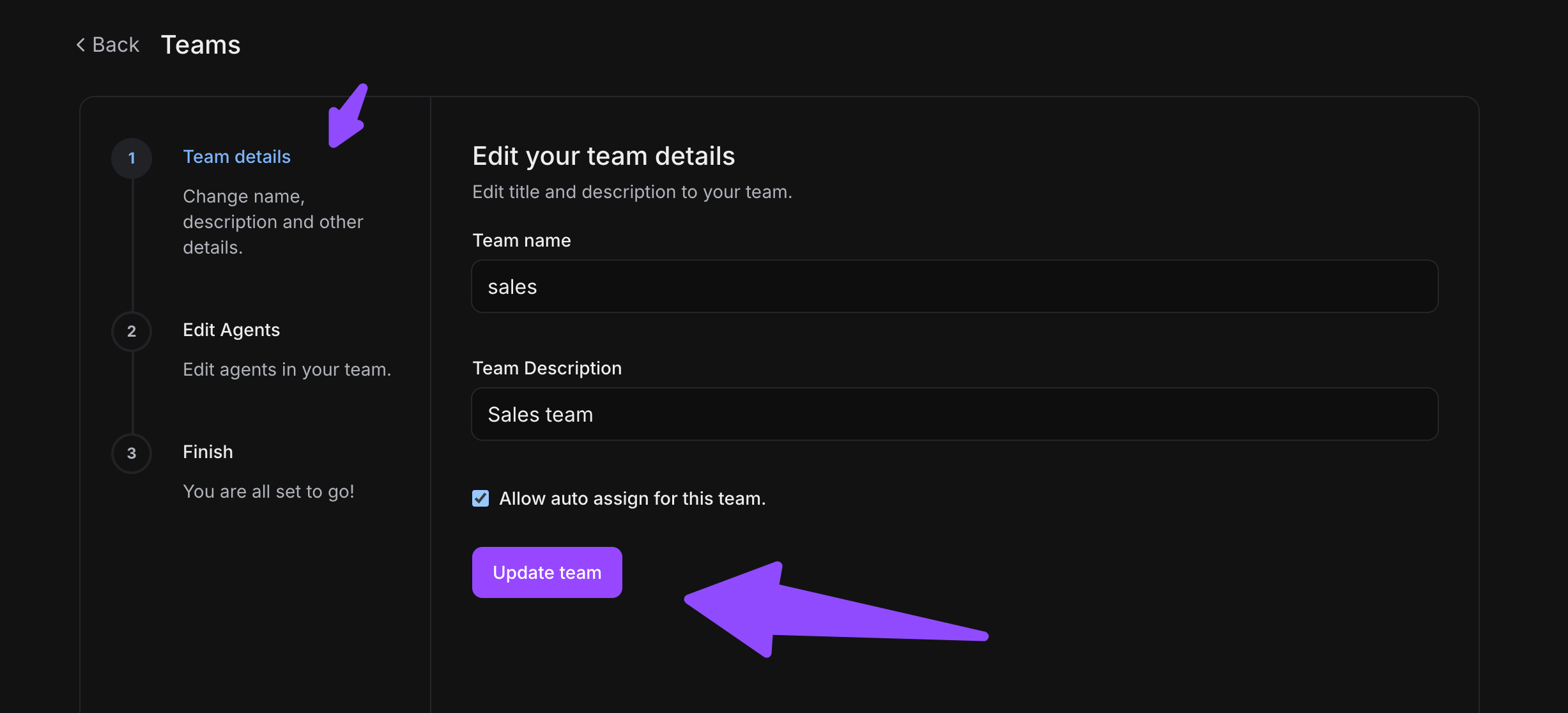
Step 2. When editing a team:
-
Update team information as needed
-
Add or remove agents
-
Change auto-assignment settings
-
Click "Update Team" to save changes
-
Click "Cancel" to discard modifications
Deleting a team:
-
Click the delete icon (red cross)
-
Confirm the deletion
-
The team will be removed from your account