Before You Begin
Step 1: Remove Freshdesk Chat Widget
Uninstall the existing Freshdesk live chat code from your website.
Step 2: Export Contacts
-
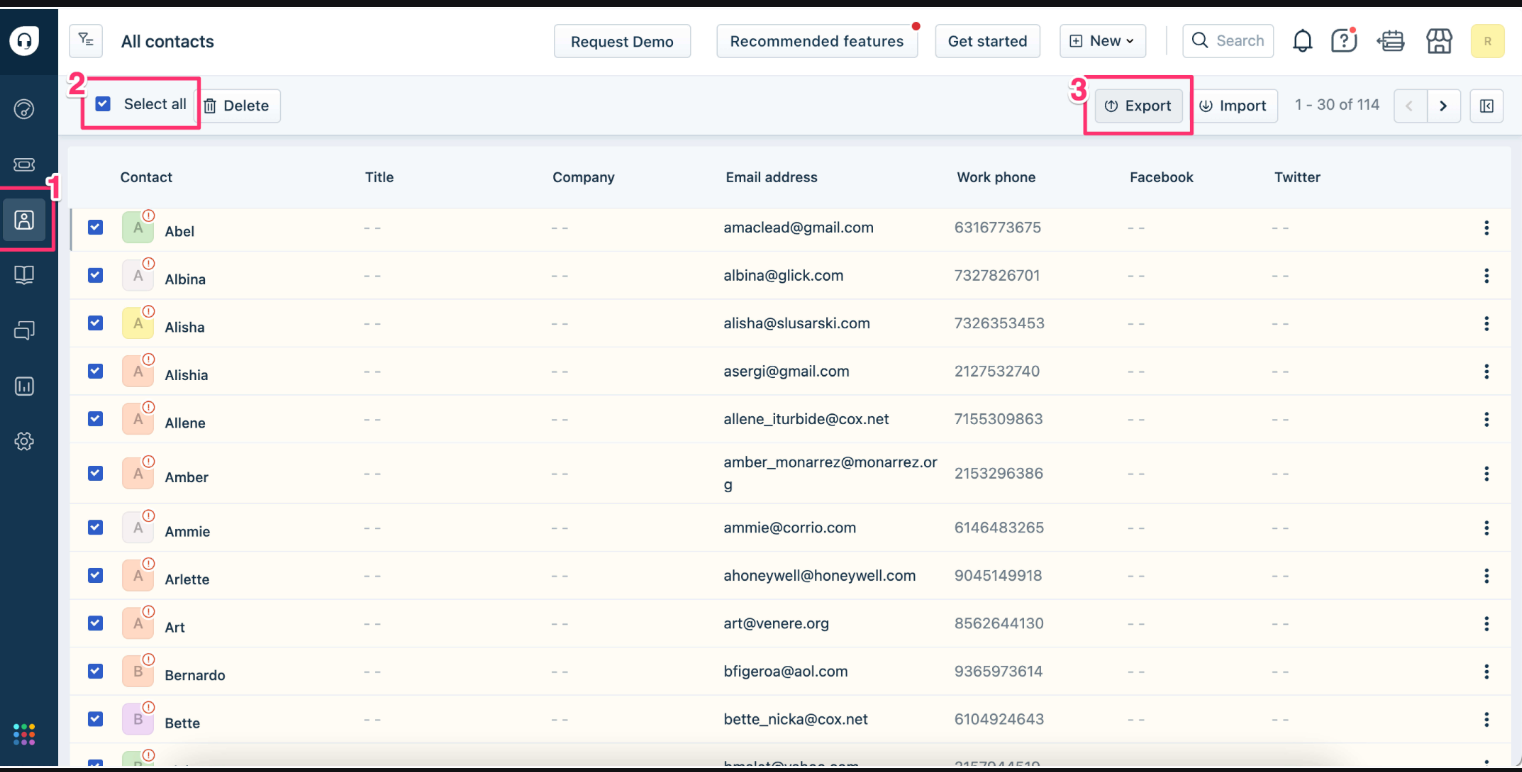
Go to 'Contacts' tab in Freshdesk
-
Select all contacts
-
Click 'Export'
-
Save the exported file to your system
Migrating to VowChat
Step 3: Sign Up
Create a VowChat account using their account creation guide.
Step 4: Migrate Live Chat Widget
-
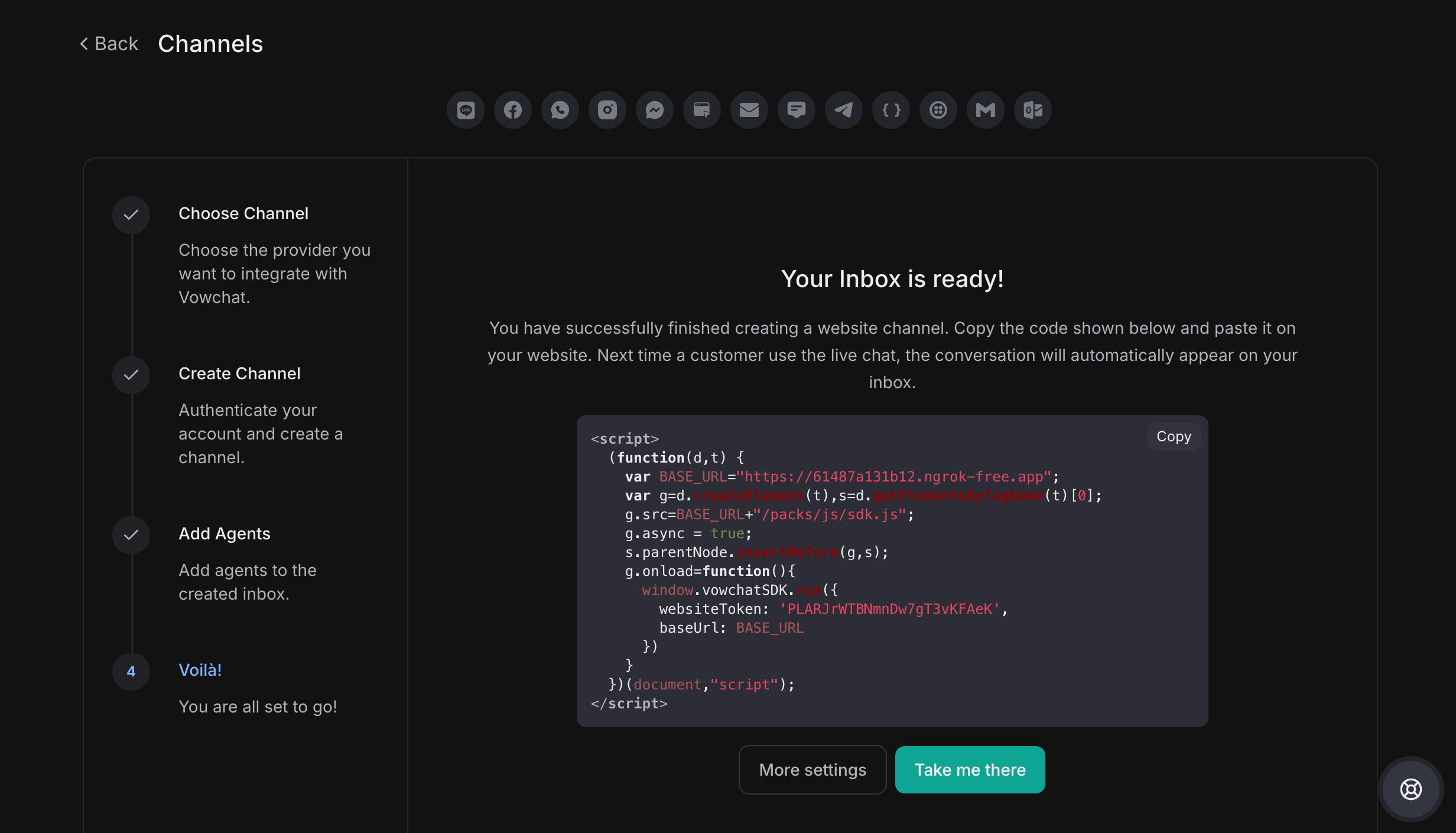
Create a live chat channel in VowChat
-
Obtain the chat code snippet
-
Install the new snippet on your website
Step 5: Migrate Contacts
-
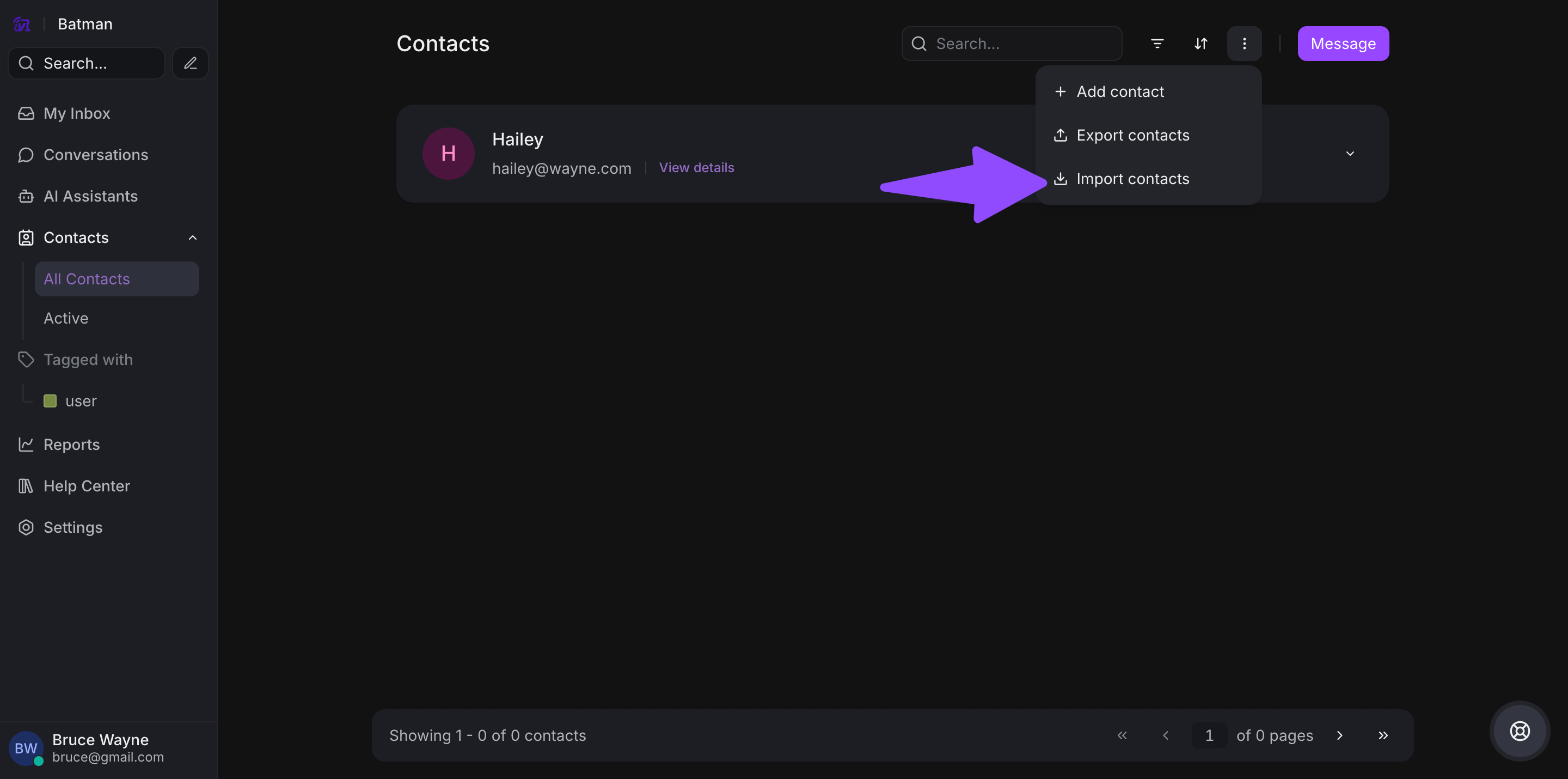
Open 'Contacts' tab in VowChat
-
Press 'Import' button
-
Upload the previously exported Freshdesk contacts CSV file
Step 6: Migrate Conversations
Use the VowChat API to import existing conversations from Freshdesk.
Step 7: Customize VowChat
Recommended next steps:
-
Review VowChat 101 tutorials
-
Set up omnichannel channels
-
Learn best practices
Additional Support
For further assistance, contact support through your VowChat dashboard.