This lesson is an extension of Lesson 3(a).
Response Templates
Response Templates help reduce repetitive messaging by saving frequently used reply templates that you can quickly insert into conversations.
What is a Response Template on VowChat?
A Response Template is a saved reply template which can be used anytime to send out a reply to a conversation quickly. Instead of typing the same message over and over, you can create templates for common responses and reuse them with a simple shortcut.
How to use Response Templates
Step 1. In a conversation, type / in the reply box. This will display all available response templates.
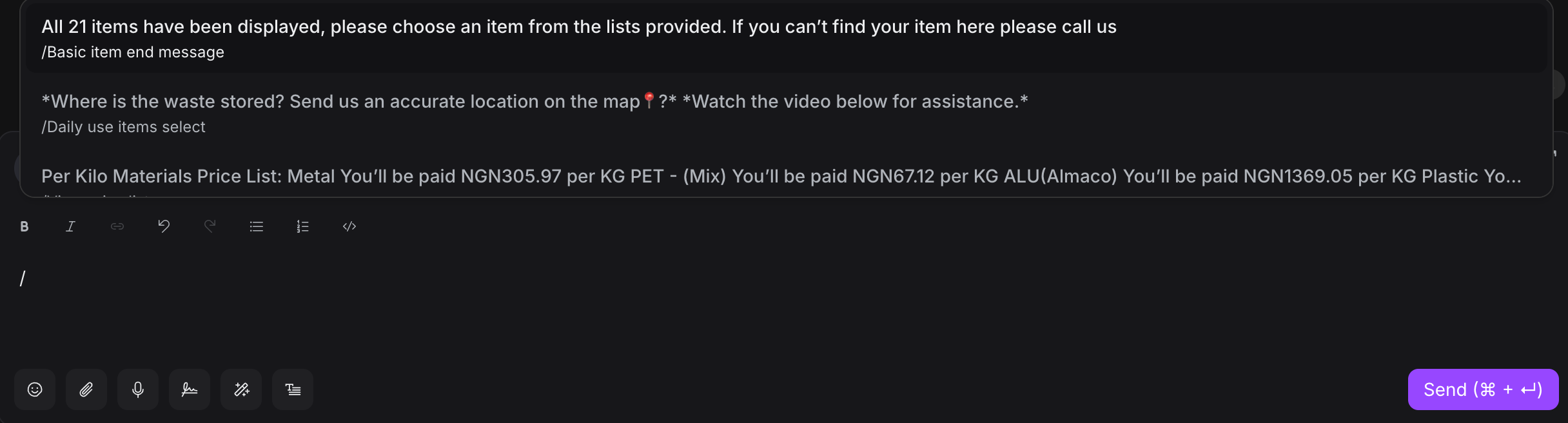
Step 2. Either type the shortcode directly, or browse through the list and click on a response template. The template content will populate your reply box.

Step 3. Review the message, make any necessary edits for personalization, and press Send.
Creating Response Templates
Step 1. Go to Settings → Response Templates
Step 2. Click "Add Response Template"
Step 3. Enter a short code (e.g., /greeting, /pricing, /support)
Step 4. Write your template message. You can include:
-
Text formatting (bold, italic, lists)
-
Variables for personalization
-
Links and attachments
Step 5. Set visibility (personal or team-wide)
Step 6. Save your template
Response Template Best Practices
-
Use Clear Shortcodes: Choose memorable, descriptive codes like
/refund-policyinstead of/rp -
Keep Templates Flexible: Leave room for personalization rather than making them too rigid
-
Review Regularly: Update templates based on changing policies or customer feedback
-
Organize by Category: Group similar templates with consistent naming conventions
-
Test Before Sharing: Try your templates in real conversations before making them team-wide
Custom Attributes
Custom Attributes allow you to track unique facts about your contacts or conversations that matter to your business.
What is a Custom Attribute?
A Custom Attribute is a particular type of fact you create for your conversations or contacts. These could be things like:
-
Subscription plan (Free, Pro, Enterprise)
-
Signup date
-
Most ordered product
-
Order value
-
Customer tier
-
Account ID from your system
-
Preferred contact method
-
Industry or company size
How to use Custom Attributes
1. Applying Custom Attributes to Conversations
Step 1. Open the conversation dashboard
Step 2. In the right sidebar, click the + sign in the "Conversation Information" section
Step 3. Select "Add Attributes"
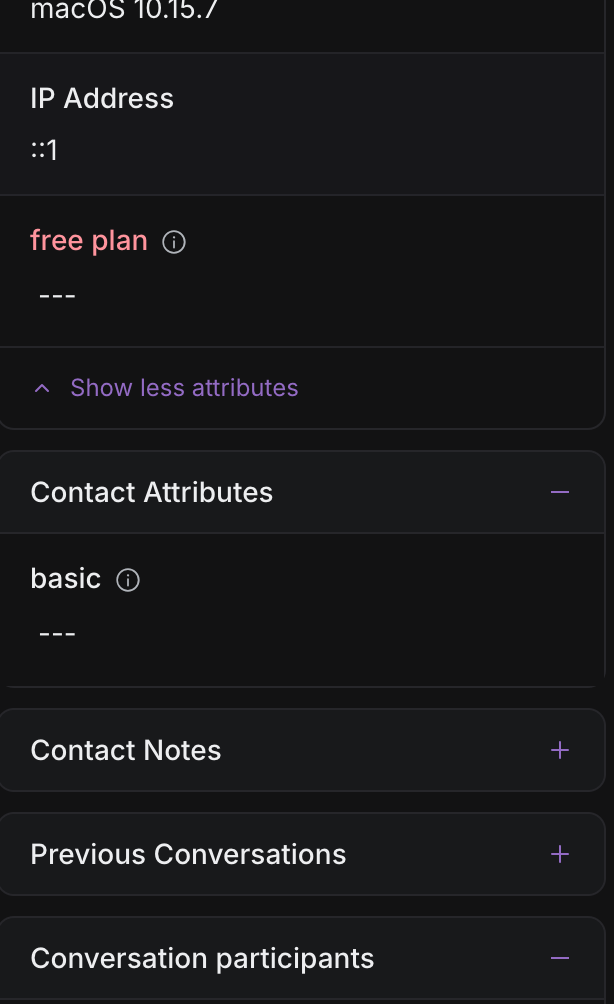
Step 4. Choose an existing attribute or create a new one, then populate the attribute details
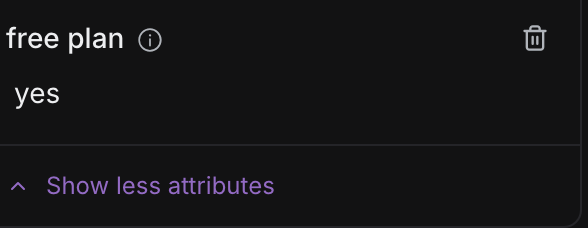
Step 5. The attribute will now be visible in the conversation information panel
2. Applying Custom Attributes to Contacts
Step 1. Navigate to Contacts in the sidebar
Step 2. Open a contact profile
Step 3. In the contact details panel, click "Add Attribute"
Step 4. Select or create attributes and populate their values
Step 5. Save the contact information
3. Filtering Conversations by Custom Attributes
Step 1. Go to "Conversations" in the sidebar
Step 2. Click the filter icon at the top
Step 3. Select "Custom Attribute" from the filter options
Step 4. Choose your attribute and set the condition (equals, contains, etc.)
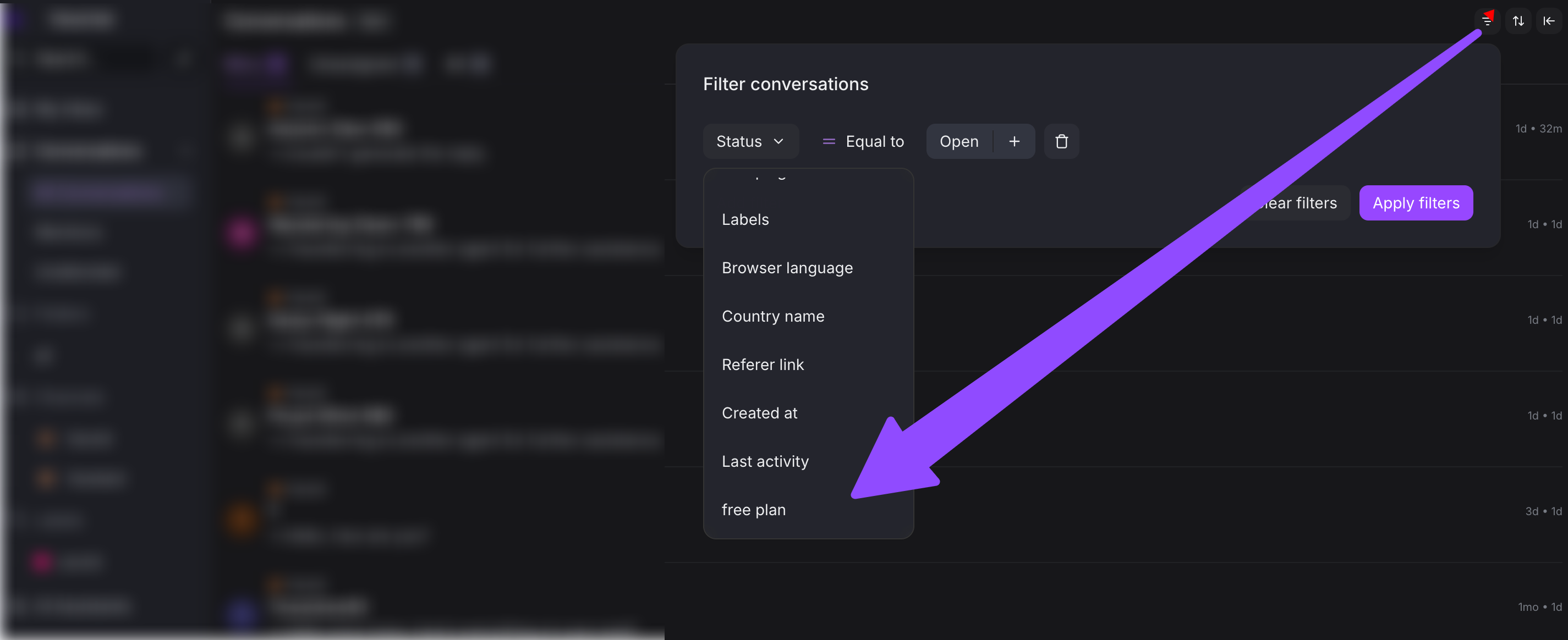
Step 5. Apply the filter to see matching conversations
4. Filtering Contacts by Custom Attributes
Step 1. Go to "Contacts" in the sidebar
Step 2. Click the filter button
Step 3. Select "Custom Attribute" from the filter criteria
Step 4. Define your filter conditions
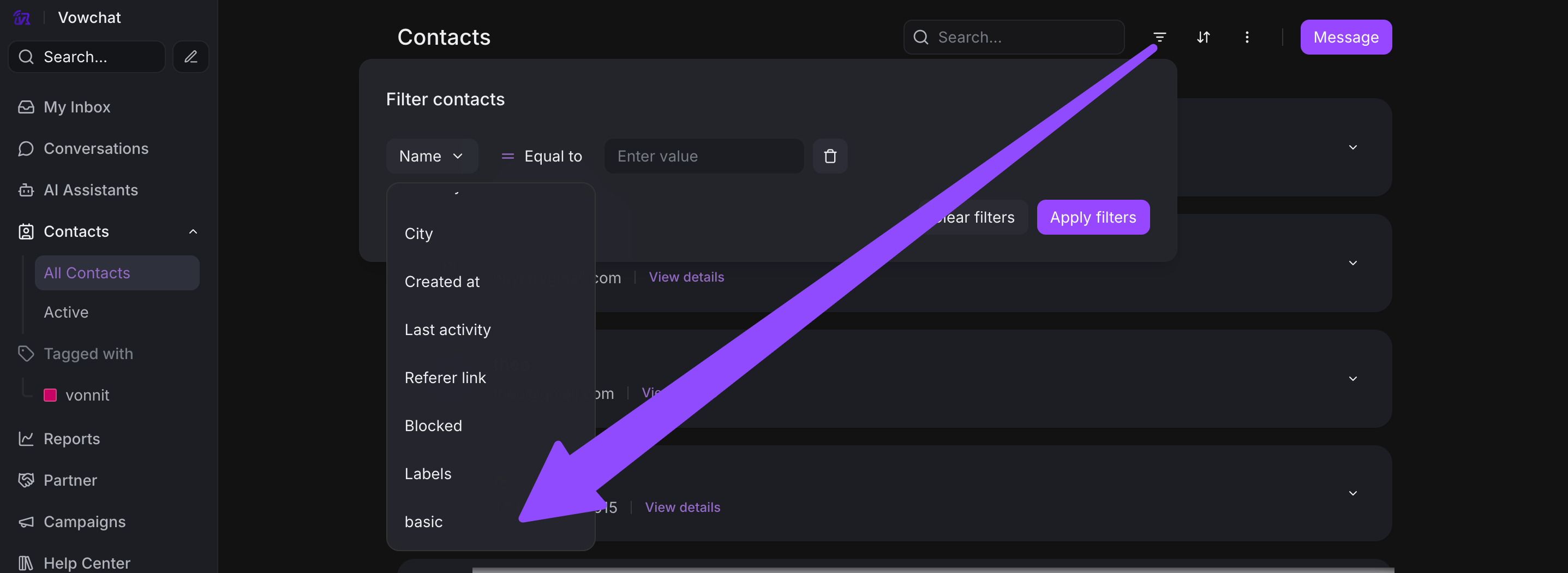
Step 5. View all contacts matching your criteria
Custom Attribute Tips
-
Define Clear Attribute Names: Use descriptive names that your team will understand
-
Standardize Values: Use dropdown lists for attributes with fixed options
-
Document Your Attributes: Keep a guide of what each attribute means and how to use it
-
Use for Automation: Custom attributes can trigger automation rules for smart routing
-
Track What Matters: Focus on attributes that help you serve customers better
Automation
Automation allows admins to create rules that automatically perform tasks, saving time and ensuring consistency across your team.
What is Automation in VowChat?
Automation is a set of rules an Admin defines for the account to automate certain tasks. These tasks can include:
-
Assigning conversations to specific agents or teams
-
Adding labels based on conditions
-
Sending automated messages
-
Snoozing conversations
-
Updating conversation priority
-
Setting custom attributes
Key Points About Automation
-
Admin-Only Creation: Only administrators can create and edit automation rules
-
Team-Wide Usage: Once created, automation rules work automatically for everyone
-
Condition-Based: Rules trigger when specific conditions are met
-
Action-Based: Each rule performs one or more actions when triggered
How to Create Automation Rules
Step 1. Go to Settings → Automation
Step 2. Click "Add Automation Rule"
Step 3. Name your rule (e.g., "Route billing questions to billing team")
Step 4. Define trigger conditions:
-
When should this rule activate?
-
Examples: Message contains "billing", Channel is "Email", Browser language is "Spanish"
Step 5. Set actions to perform:
-
What should happen when conditions are met?
-
Examples: Assign to Billing Team, Add label "urgent", Send message
Step 6. Enable the rule and save
Automation Examples
Example 1: Auto-assign by keyword
-
Condition: Message contains "bug" OR "error"
-
Action: Assign to Engineering Team, Add label "technical-issue"
Example 2: Business hours routing
-
Condition: Outside business hours
-
Action: Send auto-reply with expected response time
Example 3: VIP customer priority
-
Condition: Contact has attribute "tier" equals "VIP"
-
Action: Add label "priority", Assign to senior support agent
Example 4: Language-based routing
-
Condition: Browser language is "Spanish"
-
Action: Assign to Spanish Support Team
Automation Best Practices
-
Test Your Rules: Create a test rule first to verify it works as expected
-
Start Simple: Begin with basic rules before creating complex multi-condition automation
-
Monitor Performance: Check if your automation is improving response times and efficiency
-
Review Regularly: Outdated rules can cause problems, so audit them quarterly
-
Document Your Automation: Keep a list of what each rule does and why it was created
Reports
VowChat offers seven comprehensive report types to help you understand your support performance and make data-driven decisions.
Available Report Types
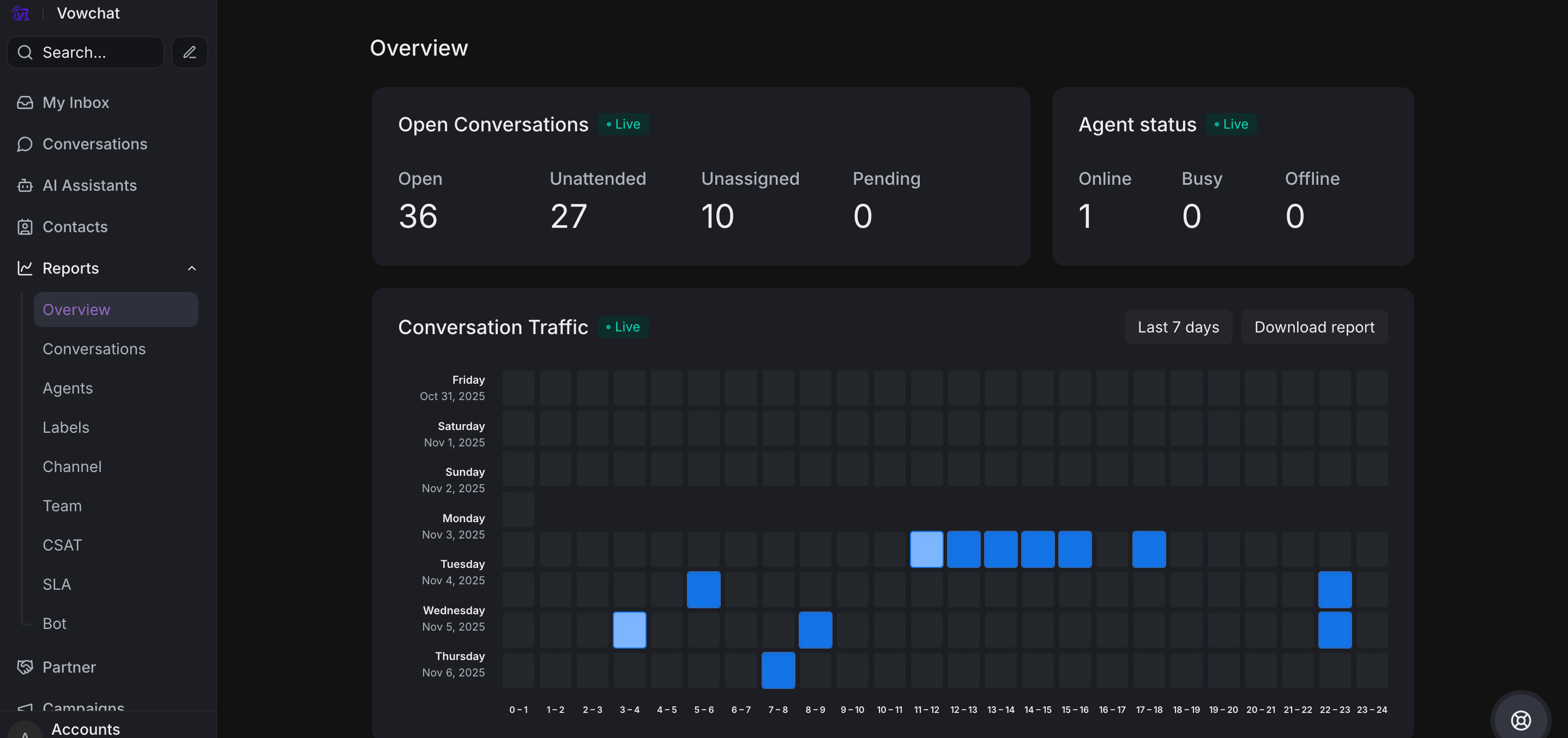
1. Overview
Account-wide metrics showing overall performance across all channels, agents, and teams. View total conversations, response times, resolution rates, and customer satisfaction scores.
2. Conversations Overview
Detailed conversation metrics and trends including:
-
Total conversations by status
-
Peak conversation times
-
Average conversation duration
-
Conversation volume trends over time
3. CSAT Reports
Customer Satisfaction (CSAT) reports showing:
-
Overall satisfaction rating
-
CSAT score trends
-
Ratings breakdown by agent, team, or channel
-
Customer feedback comments
4. Agents Overview
Individual agent performance metrics:
-
Total messages sent by each agent
-
Average first response time
-
Average resolution time
-
Conversations handled
-
Customer satisfaction ratings
5. Labels Overview
Label usage statistics showing:
-
Most frequently used labels
-
Conversation volume by label
-
Response time by label category
-
Resolution rates for labeled conversations
6. Channel Overview
Channel-specific metrics for each of your communication channels:
-
Conversation volume per channel
-
Response times by channel
-
Channel-specific resolution rates
-
Channel performance comparison
7. Team Overview
Team performance data including:
-
Total conversations handled by team
-
Team response and resolution times
-
Member contributions within teams
-
Team satisfaction ratings
How to Access and Use Reports
Step 1. Click the Reports icon in the sidebar
Step 2. Select the report type you want to view
Step 3. Choose your date range:
-
Today
-
Last 7 days
-
Last 30 days
-
Custom date range
Step 4. Apply filters if needed:
-
Filter by specific channel
-
Filter by agent or team
-
Filter by label
-
Toggle business hours view
Step 5. Analyze the data:
-
View charts and graphs
-
Identify trends and patterns
-
Spot areas for improvement
Step 6. Export data if needed:
-
Download as CSV for further analysis
-
Share with stakeholders
-
Track performance over time
Using Reports Effectively
-
Set Baselines: Track your initial metrics to measure improvement
-
Regular Review: Schedule weekly or monthly report reviews with your team
-
Identify Trends: Look for patterns in response times, conversation volume, and satisfaction
-
Spot Training Needs: Use agent reports to identify coaching opportunities
-
Optimize Staffing: Use conversation trends to adjust team schedules
-
Channel Performance: Compare channels to allocate resources effectively
-
Customer Satisfaction: Monitor CSAT trends to ensure service quality
What's Next?
Congratulations! You've now mastered VowChat's core features including Response Templates, Custom Attributes, Automation, and Reports.
These tools will help you:
-
✅ Respond faster with Response Templates
-
✅ Track important customer information with Custom Attributes
-
✅ Work smarter with Automation
-
✅ Make data-driven decisions with Reports
Move on to Lesson 4 to explore advanced features and complete your customer engagement suite setup!