By the end of this lesson, you will understand all the key things you can do on the VowChat dashboard.
Dashboard Sections
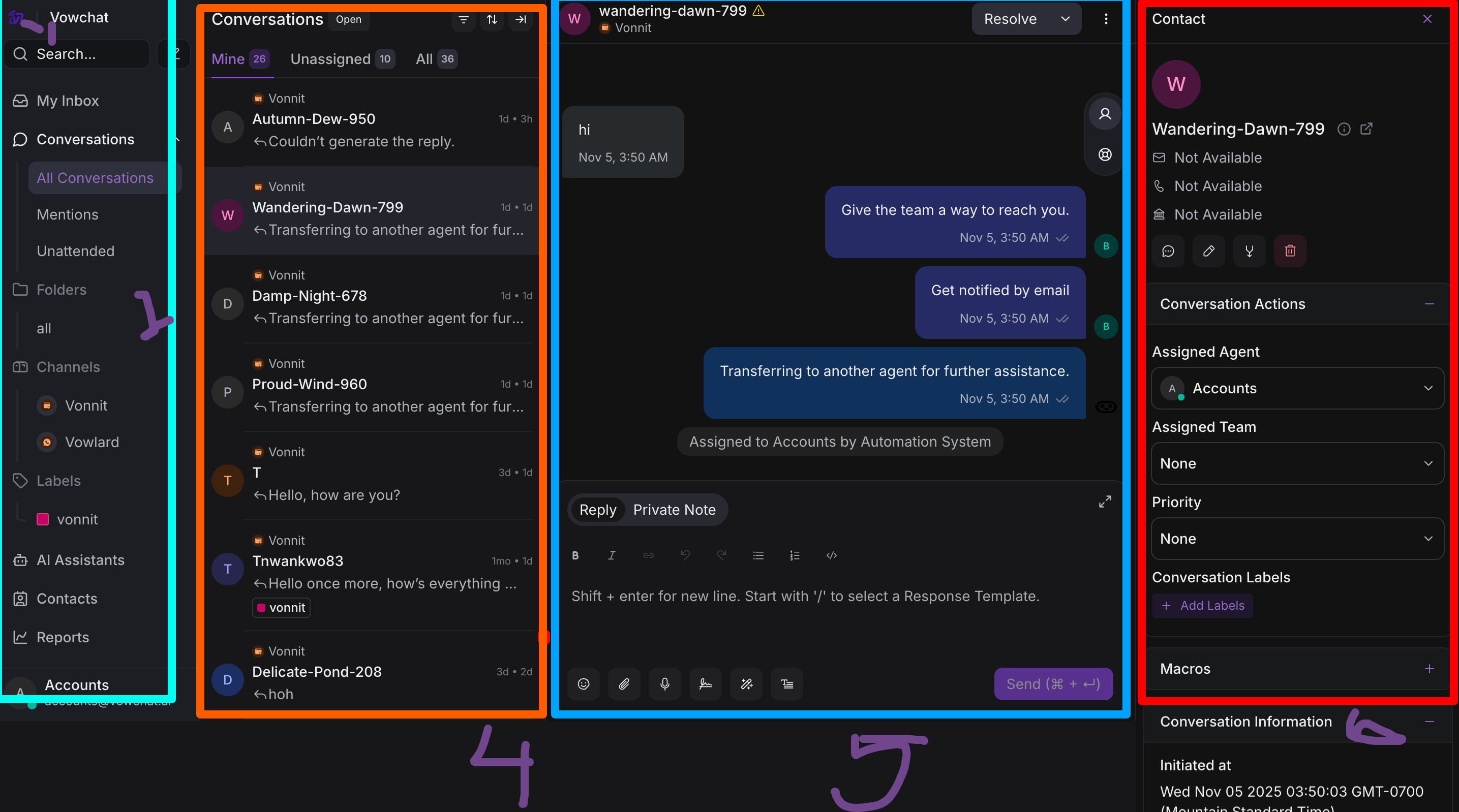
1. VowChat Icon
Click on the VowChat icon to go to the dashboard anytime.
2. Sidebar Controls (First Set)
-
View conversations
-
View contacts
-
View Reports
-
Create a campaign
-
Create a Help Center
-
Go to Account Settings
3. Sidebar Controls (Second Set)
-
Read documentation
-
View notifications
-
Access personal profile settings
4. Currently Viewing
Shows the connected organization/company for message reception.
5. Connected Stuff
-
Conversations (All, Mentions, Unattended)
-
Teams
-
Inboxes
-
Labels
6. Conversations Panel
Features include:
-
Search bar
-
Dashboard layout switching
-
Conversation filtering
-
Conversation list with tabs (Mine, Unassigned, All)
7. Customer Information
-
Customer basic info
-
Contact details
-
Previous conversations history
8. Reply Features
-
Reply box with rich text editor
-
File attachment options
-
Canned responses
-
Emoji support
9. Conversation Management
-
Assigned agent/team selection
-
Conversation actions (resolve, snooze, etc.)
-
Macros for quick actions
-
Labels and tags
-
Contact attributes
Getting Comfortable
Spend some time exploring each section. Click around, open conversations, and familiarize yourself with where everything is. The more comfortable you are with the dashboard, the faster you'll be able to help your customers!
Next Steps
Once you're familiar with the dashboard layout, move on to Lesson 3 where we'll dive into mastering VowChat's core features.