How to use Macros?
A macro is a set of sequential saved actions that automate repetitive tasks in customer support workflows.
What Macros Can Do
-
Label conversations
-
Send email transcripts
-
Assign team members
-
Send standard messages
-
Snooze conversations
-
Close conversations
How to Create a Macro
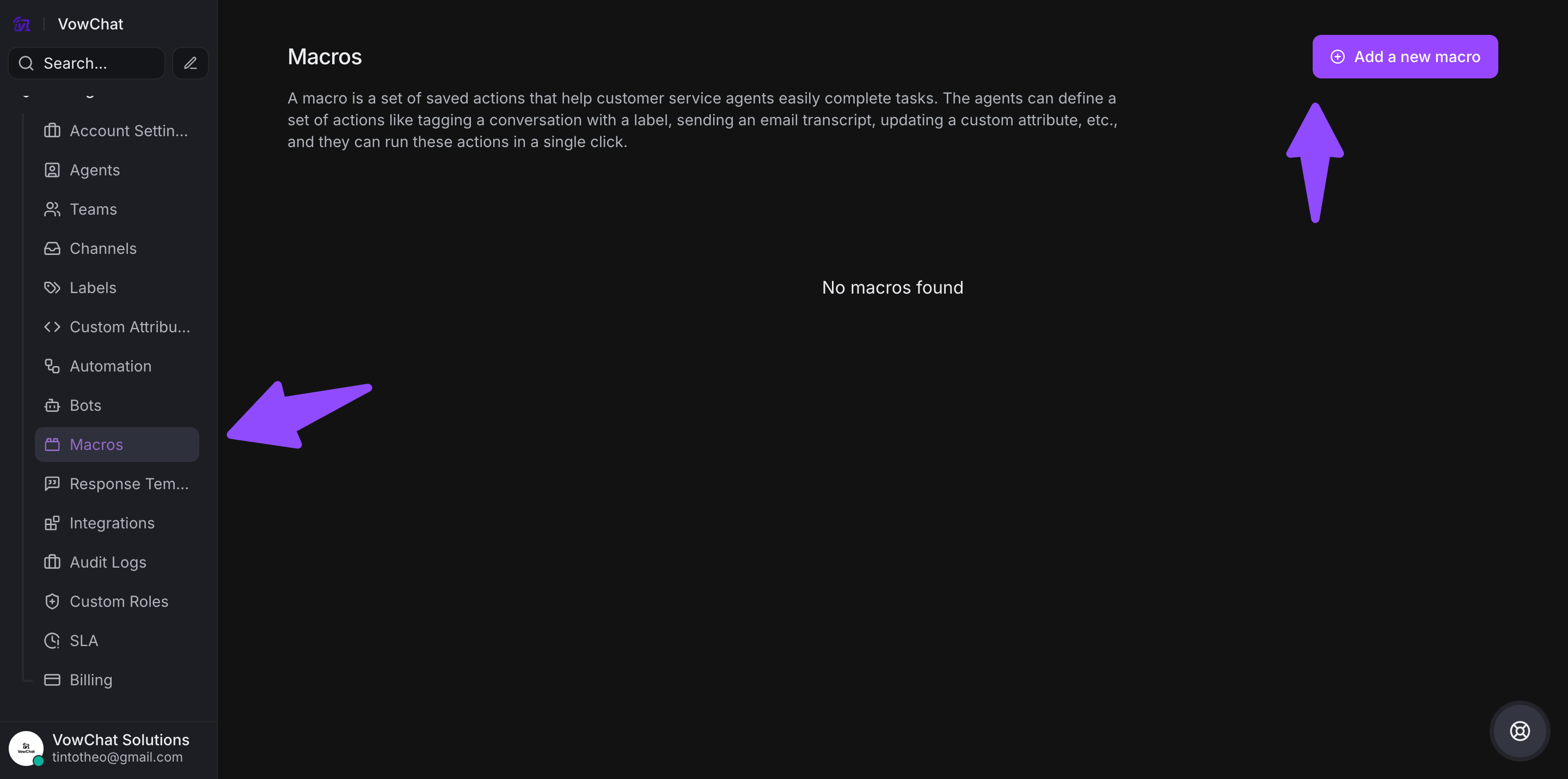
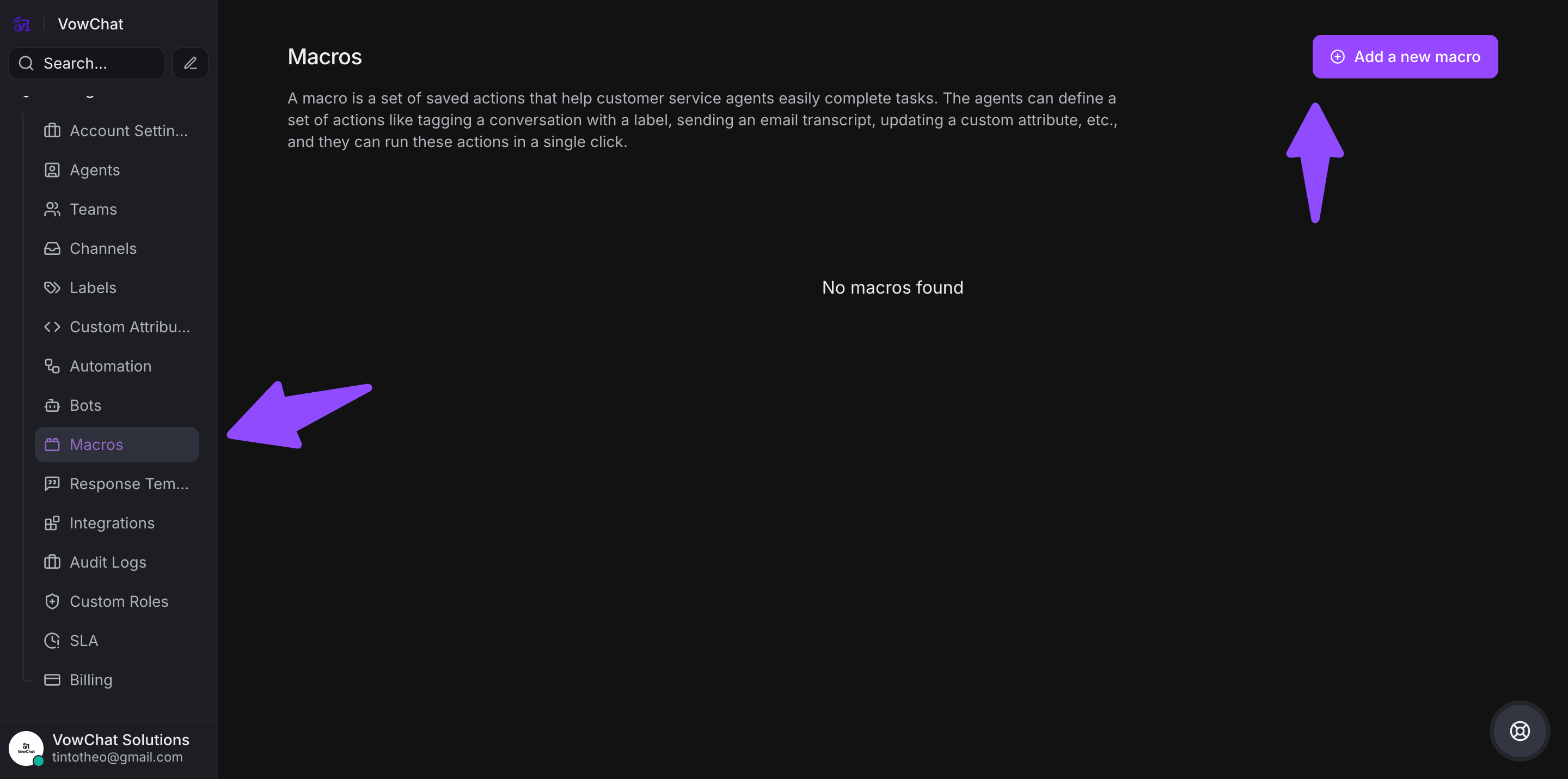
Step 1. Go to Settings → Macros → "Add a new macro"
Step 2. Select and configure sequential actions
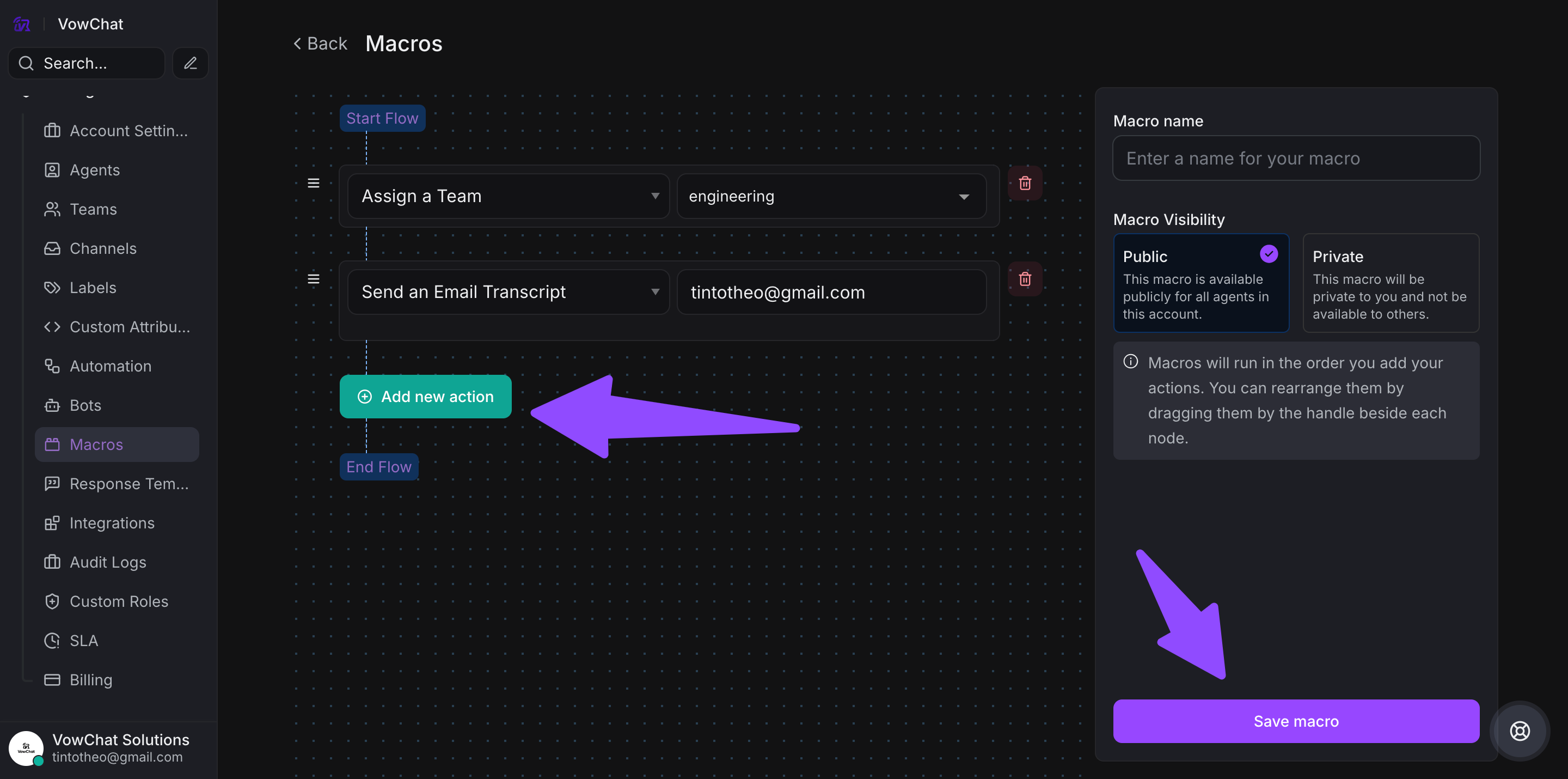
Step 3. Name the macro and set visibility (Private or Public)
Step 4. Save the macro
How to Use a Macro
-
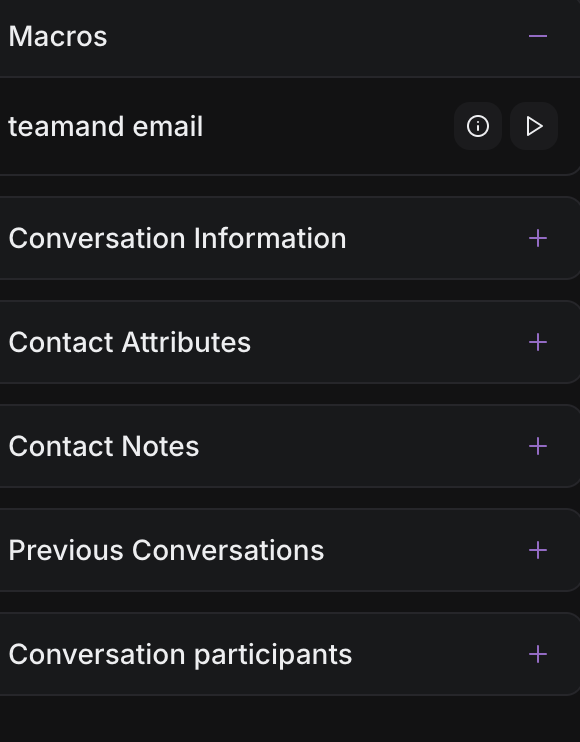
Open "Macros" section in chat sidebar
-
Preview macro actions (optional)
-
Click play button to execute macro
-
Macro performs all configured actions instantly
Example Use Case
When receiving a demo request, a macro can automatically:
-
Assign to Sales team
-
Send standard booking message
-
Add "Sales" label
-
Snooze conversation
Save time by automating repetitive support tasks with a single click.