Assigning priority levels to conversations helps your team focus on urgent matters and manage workload effectively. VowChat offers four priority levels to categorize conversations.
Available Priority Levels
VowChat provides four priority options:
-
Low: Non-urgent inquiries that can be handled when time permits
-
Medium: Standard conversations requiring normal response times
-
High: Important issues that need prompt attention
-
Urgent: Critical matters requiring immediate response
Tip: Use "Urgent" priority sparingly to maintain its effectiveness.
Methods to Assign Priority
There are three ways to assign priority to a conversation:
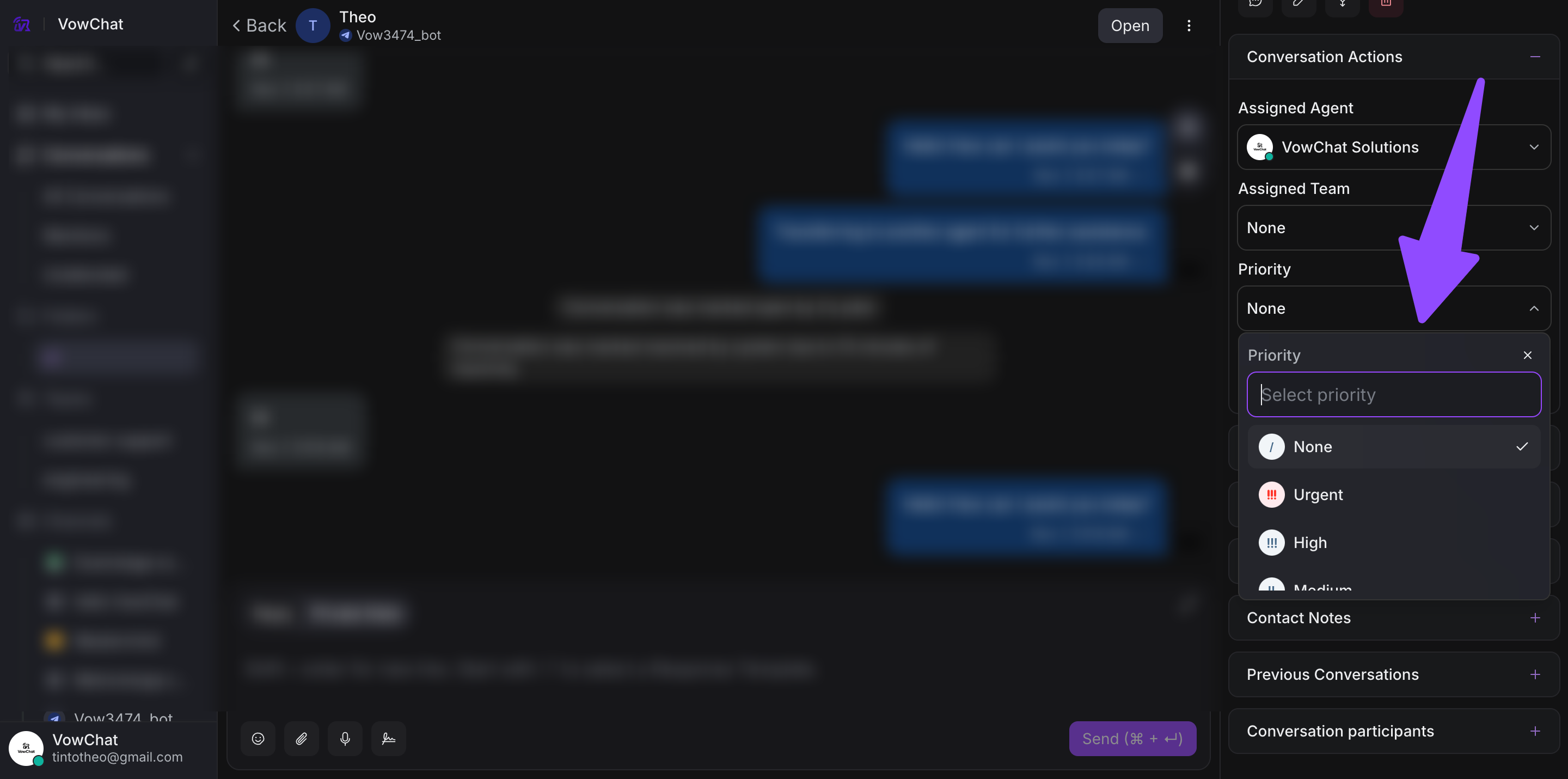
Method 1: From Sidebar
Step 1. Open a conversation
Step 2. In the right sidebar, locate the Priority section

Step 3. Click to select the appropriate priority level
Step 4. The priority is automatically saved
Method 2: Context Menu (Right-click)
Step 1. In your conversation list, right-click on a conversation

Step 2. Select Set Priority from the menu
Step 3. Choose the priority level
Method 3: Command Palette
Step 1. Open a conversation
Step 2. Press CMD + K (Mac) or Ctrl + K (Windows/Linux)

Step 3. Type "priority" and select Set Priority
Step 4. Choose the priority level
Viewing Priority in Conversation List
Once assigned, priority is displayed in your conversation list:
Conversations show colored indicators based on their priority level, making it easy to identify urgent matters at a glance.
Automation with Priority
You can automate priority assignment using:
Automation Rules
Create rules to automatically assign priority based on:
-
Message content keywords
-
Channel source
-
Contact attributes
-
Time of day
-
Labels
Example: Automatically mark all conversations containing "urgent" or "critical" as High priority.
Macros
Create macros that include priority changes along with other actions:
-
Assign to specific team
-
Add labels
-
Set priority
-
Send message
Example: "Escalate to Manager" macro that sets priority to Urgent, assigns to leadership team, and adds "escalation" label.
Frequently Asked Questions
Can I create custom priorities?
No, VowChat currently supports only the four default priority levels (Low, Medium, High, Urgent). Custom priorities are not available.
Does priority work with automation rules?
Yes! You can use automation rules to automatically assign priorities based on conditions like message content, channel, or contact attributes.
Can I include priority in macros?
Yes! Macros can include priority changes along with other actions, allowing you to apply multiple changes with a single click.
Best Practices
-
Define clear criteria: Establish team guidelines for when to use each priority level
-
Use automation: Set up rules for common priority patterns
-
Monitor distribution: Ensure priorities are balanced and meaningful
-
Review regularly: Audit priority assignments to maintain consistency
-
Train your team: Make sure all agents understand priority usage