Response Templates are saved message templates that agents can use to quickly respond to common questions. Instead of typing the same message repeatedly, create templates for frequently asked questions and reuse them with a simple shortcode.
What are Response Templates?
Response Templates help your team:
-
Respond faster to common inquiries
-
Maintain consistent messaging across agents
-
Reduce typing and improve efficiency
-
Ensure accurate information in responses
How to Create Response Templates
Step 1. Go to Settings → Response Templates
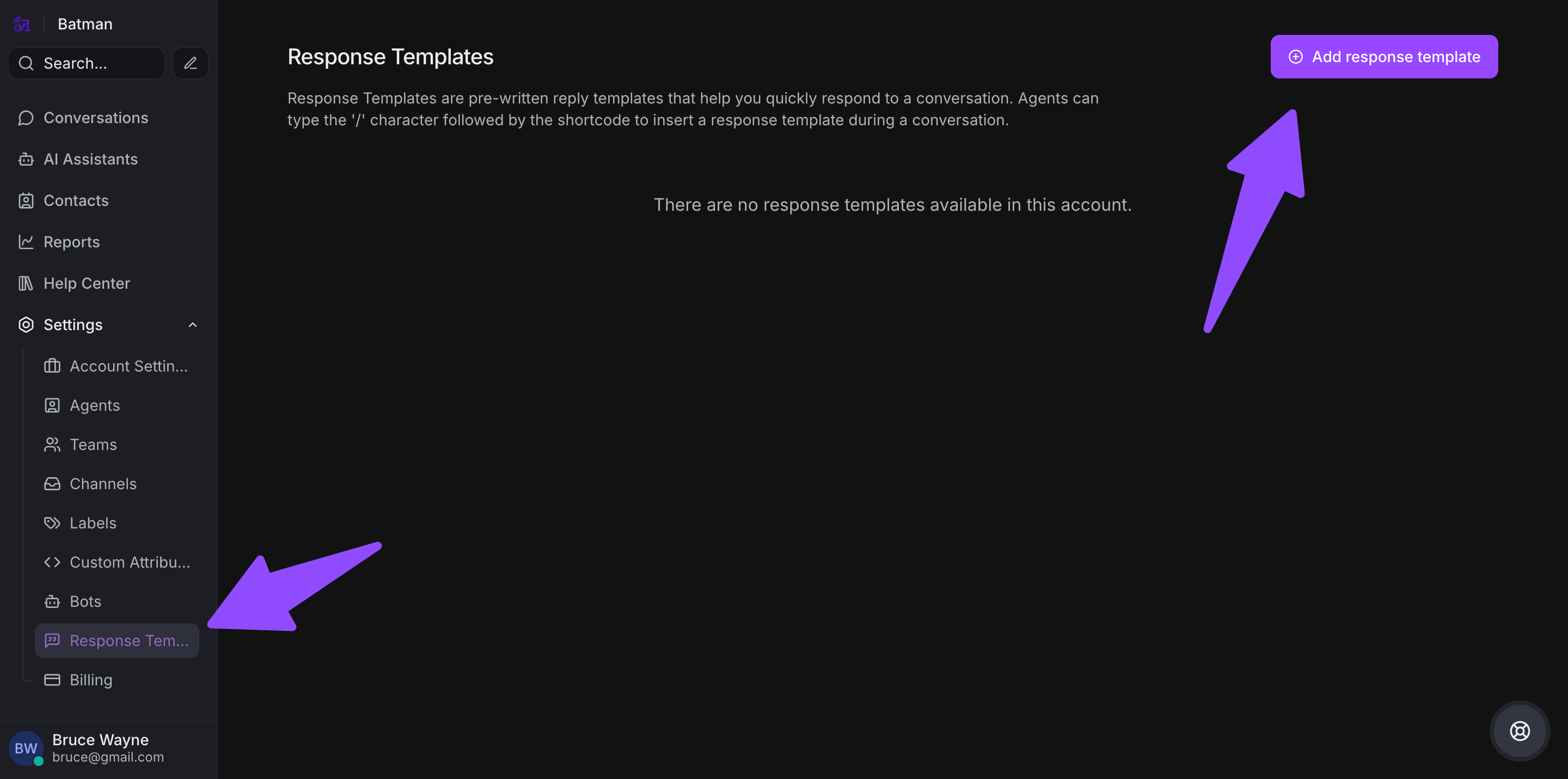
Step 2. Click Add Response Template
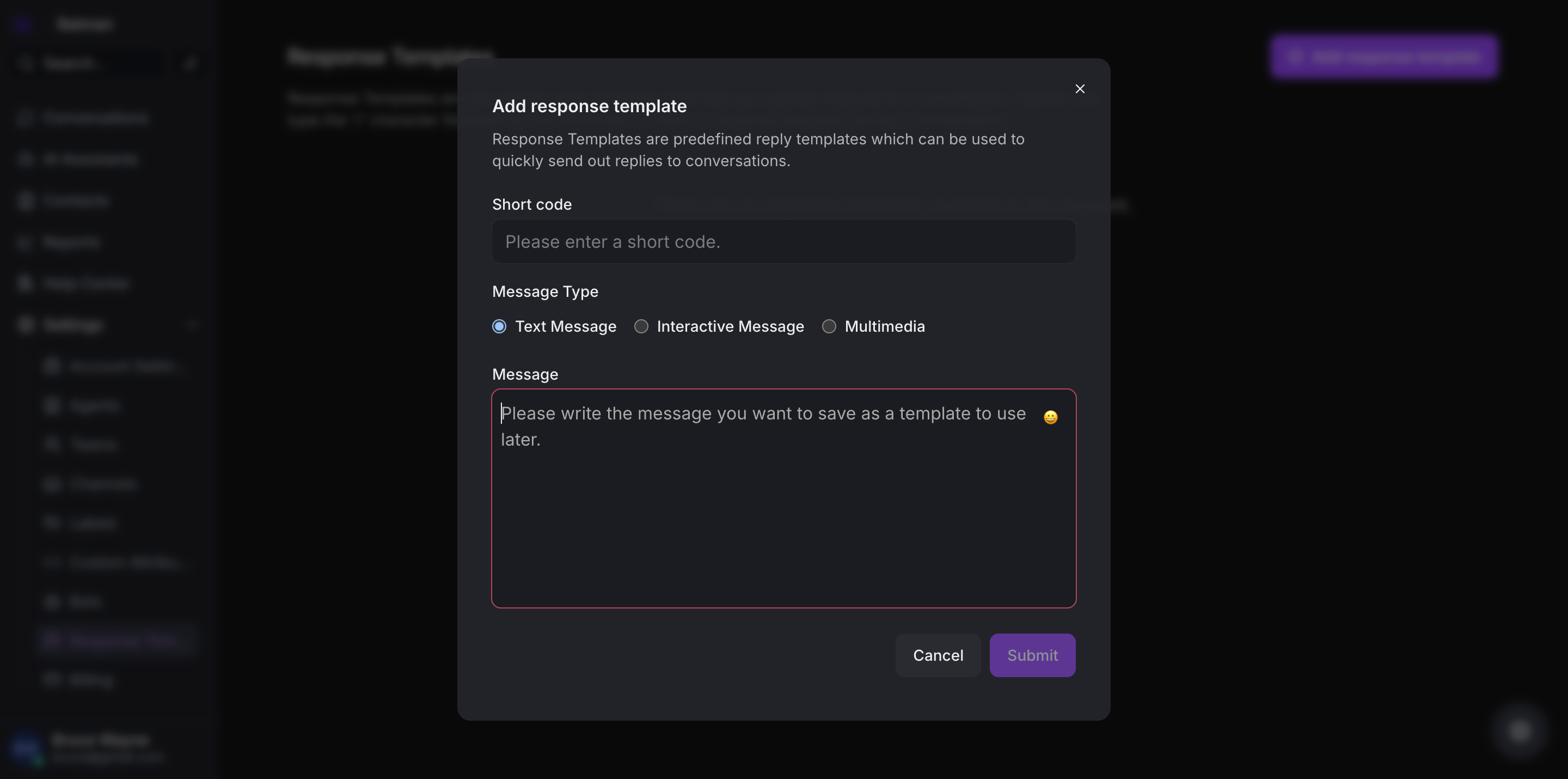
Step 3. Fill in the template details:
-
Short Code: Create a unique identifier (minimum 2 characters)
- Example:
/pricing,/shipping,/refund
- Example:
-
Message Content: Type the message template
-
Use rich text formatting (bold, italic, lists)
-
Add links and formatting as needed
-
Step 4. Click Submit to save the template
How to Edit or Delete Response Templates
Step 1. Go to Settings → Response Templates
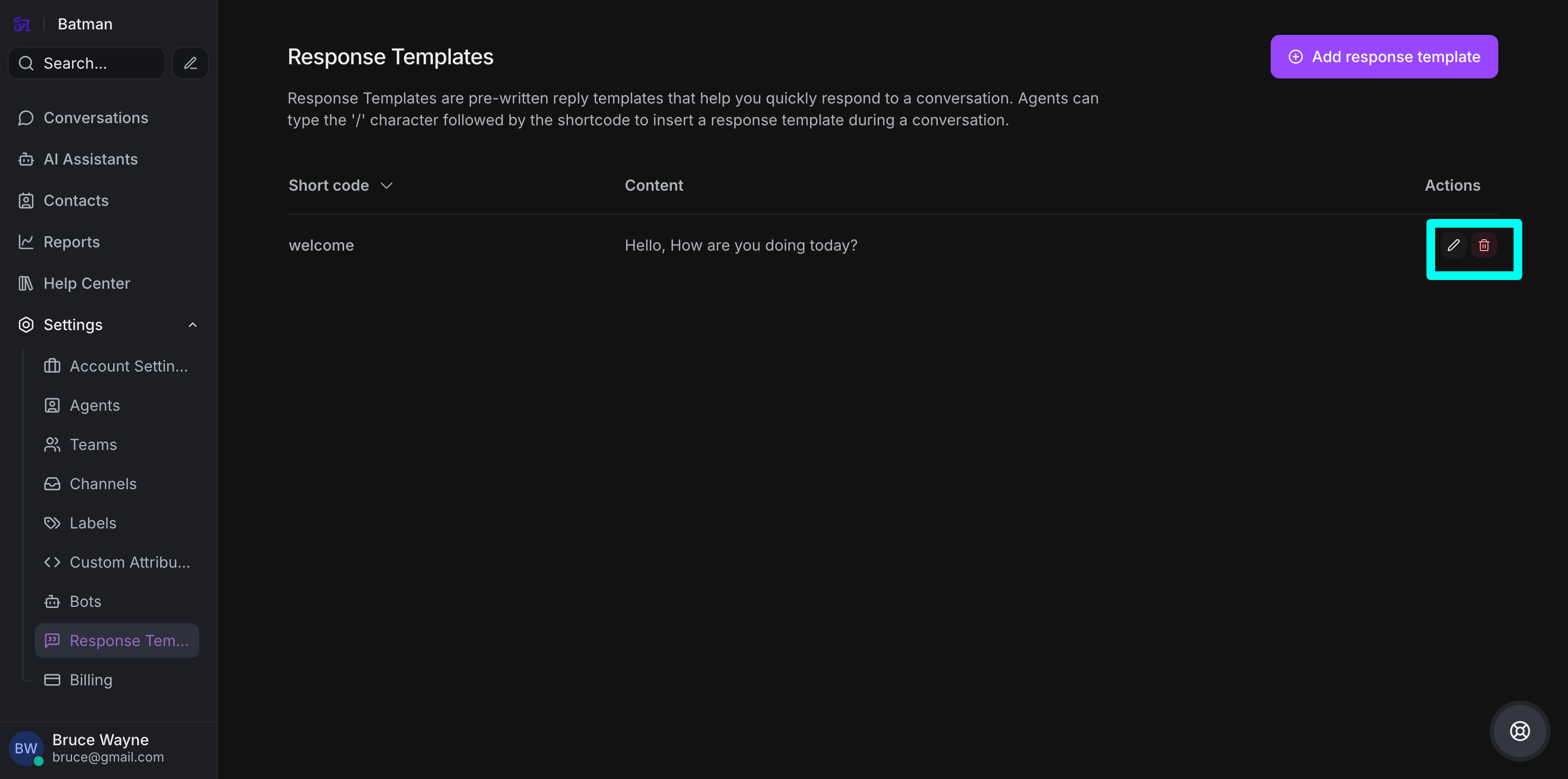
Step 2. Use the action icons:
-
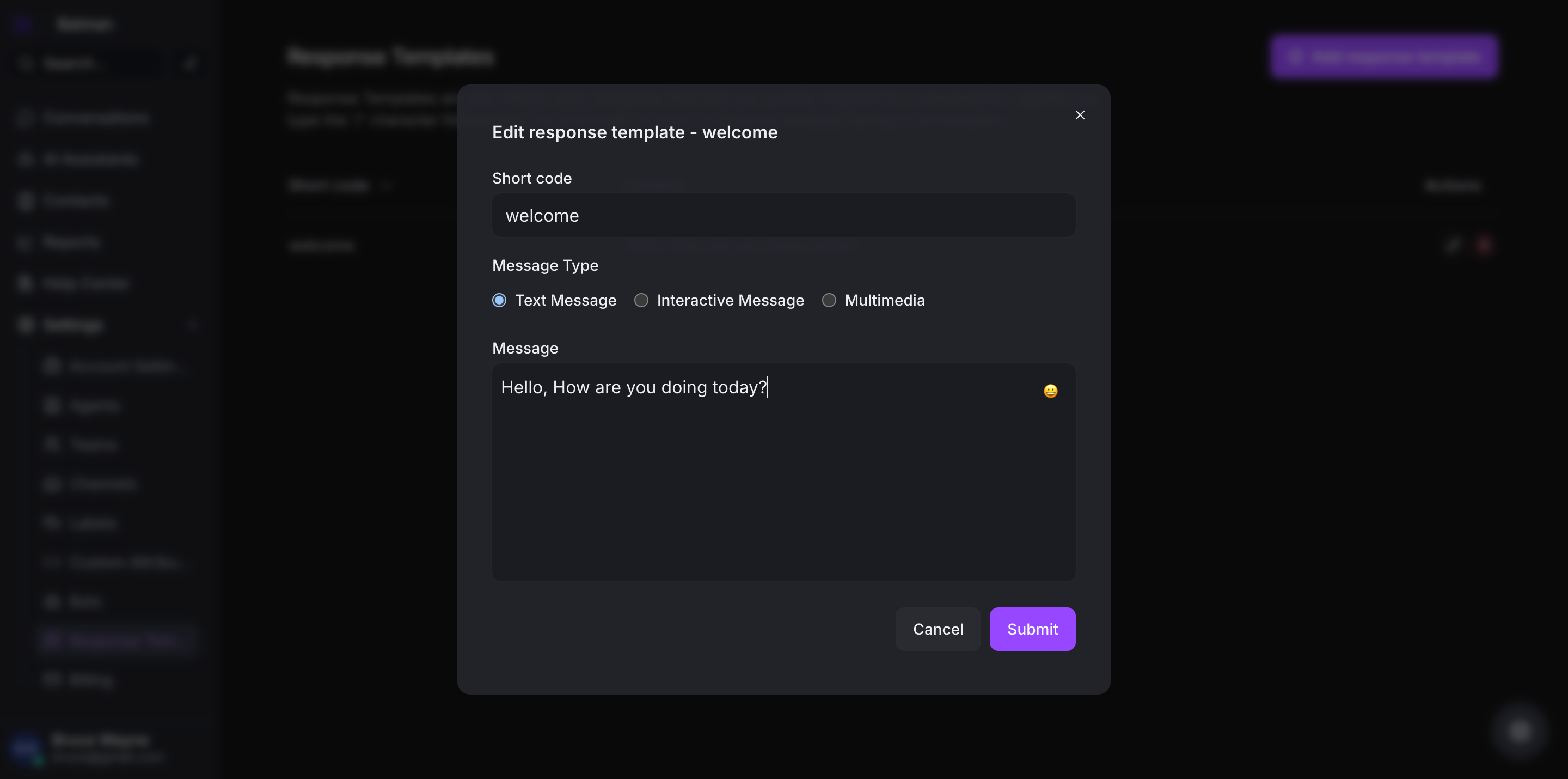
Edit icon: Modify the template content or shortcode
-
Delete icon: Remove the template
Step 3. For editing, update the details and save
How to Use Response Templates
Using templates in conversations is simple:
Step 1. Open a conversation
Step 2. In the chat text editor, type /
Step 3. Either:
-
Browse through the list of available templates
-
Type the shortcode directly (e.g.,
/pricing)
Step 4. Select the template or press Enter
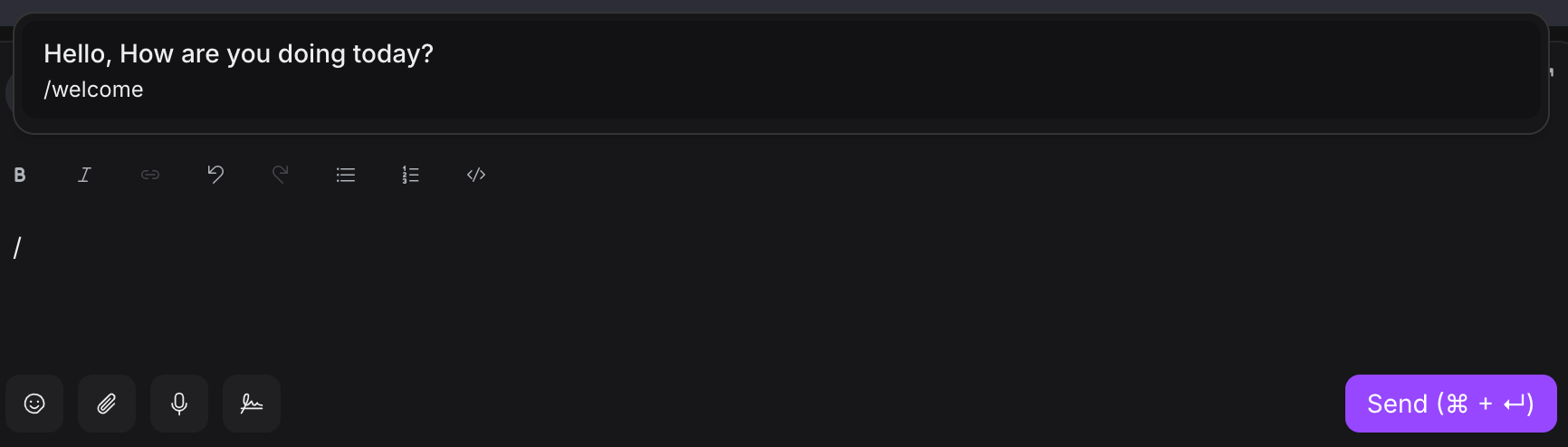
The template content will populate your reply box, ready to send or customize before sending.
Who Can Create Response Templates?
All agents and administrators can create and modify response templates. Templates are account-wide, meaning they're accessible to all agents in your VowChat account.
Response Template Library
VowChat offers a library of editable reply templates to help you get started. You can customize these templates to match your brand voice and specific use cases.
Best Practices
-
Use clear shortcodes: Make them easy to remember (e.g.,
/greetinginstead of/g1) -
Keep templates flexible: Leave room for personalization
-
Review regularly: Update templates when policies or information changes
-
Organize by category: Use consistent naming for related templates
-
Test before using: Try templates in real conversations to ensure they work well