This guide will help you integrate VowChat live chat widget into your Vue.js application.
Step 1: Get Widget Script
Find the widget script in your Website Channel settings:
-
Navigate to Settings → Channels
-
Select your Website Channel
-
Go to the Configuration tab
Step 2: Copy Script
Copy the script from the channel's code field.
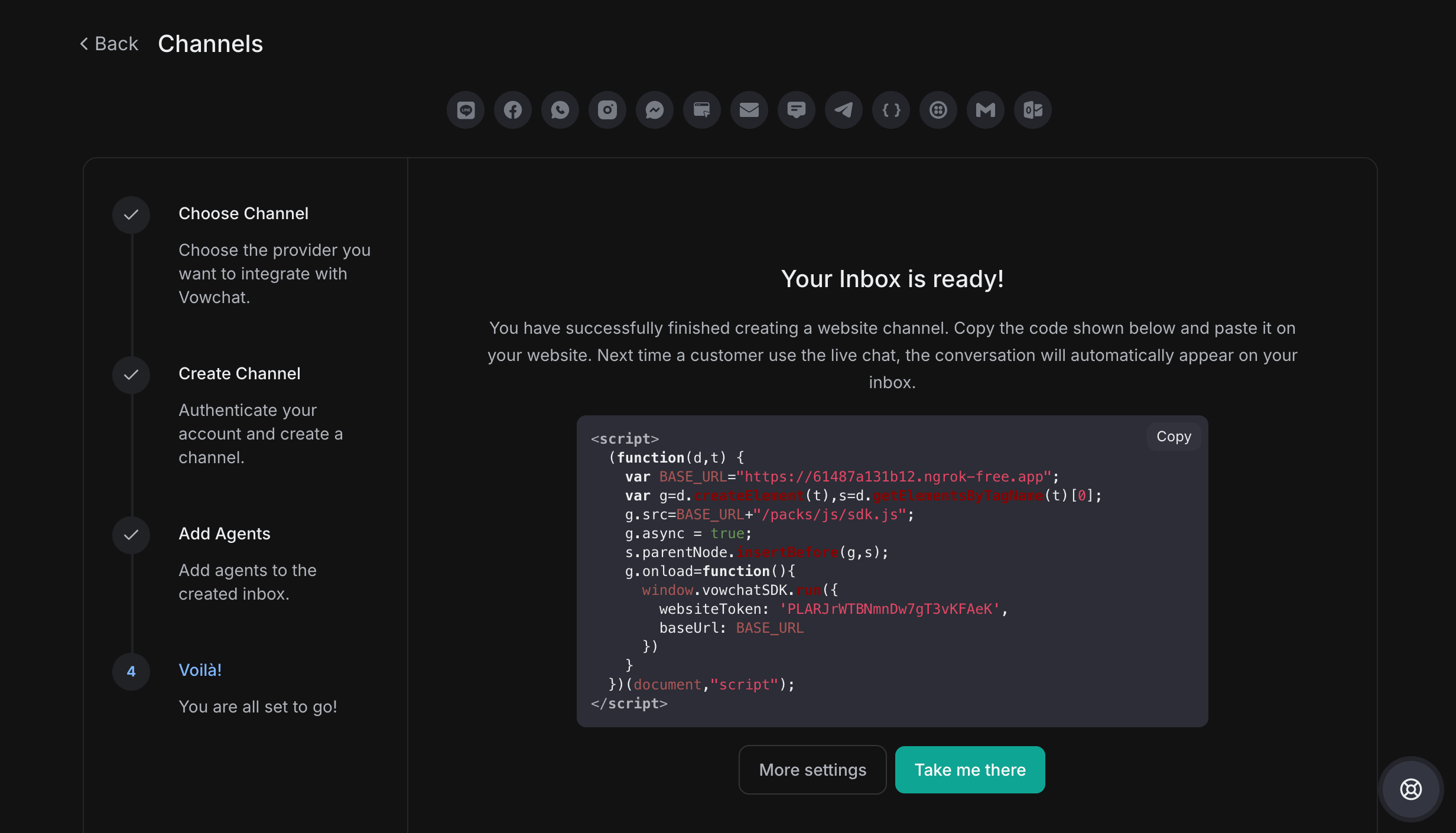
Step 3: Paste Script
-
Open your Vue project
-
Locate the
index.htmlfile -
Paste the script before the closing
</body>tag
Here's an example:
<script>
  (function(d,t) {
    var BASE_URL="https://app.vowchat.ai";
    var g=d.createElement(t),s=d.getElementsByTagName(t)[0];
    g.src=BASE_URL+"/packs/js/sdk.js";
    g.defer = true;
    g.async = true;
    s.parentNode.insertBefore(g,s);
    g.onload=function(){
      window.vowchatSDK.run({
        websiteToken: 'your_website_token_here',
        baseUrl: BASE_URL
      })
    }
  })(document,"script");
</script>
Step 4: Check
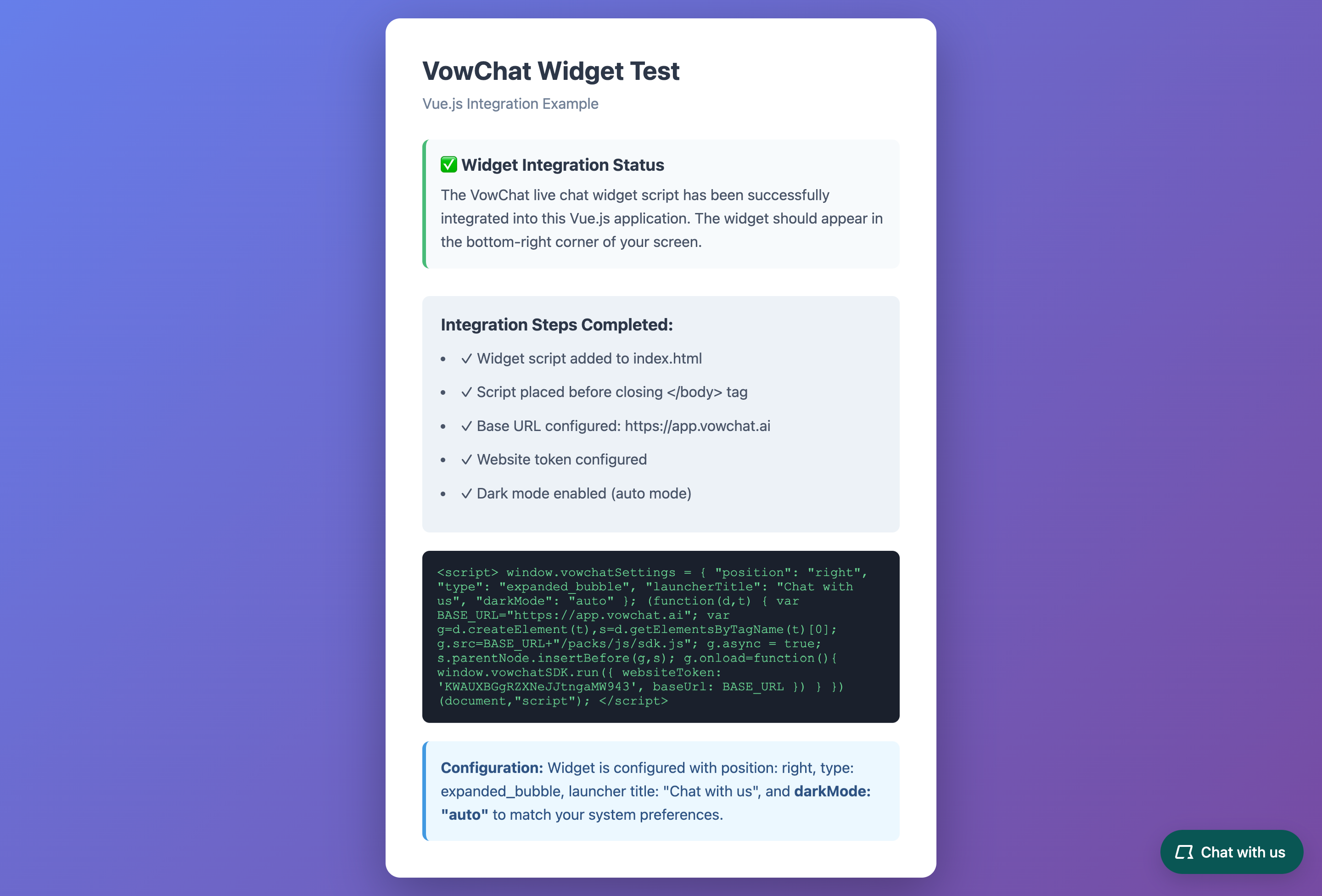
Reload your application and verify that the VowChat widget appears on the page.
Additional Resources
The community maintains Vue 3 and Nuxt 3 modules for easier integration. Check out the community resources for more integration options.