How to setup a Facebook channel?
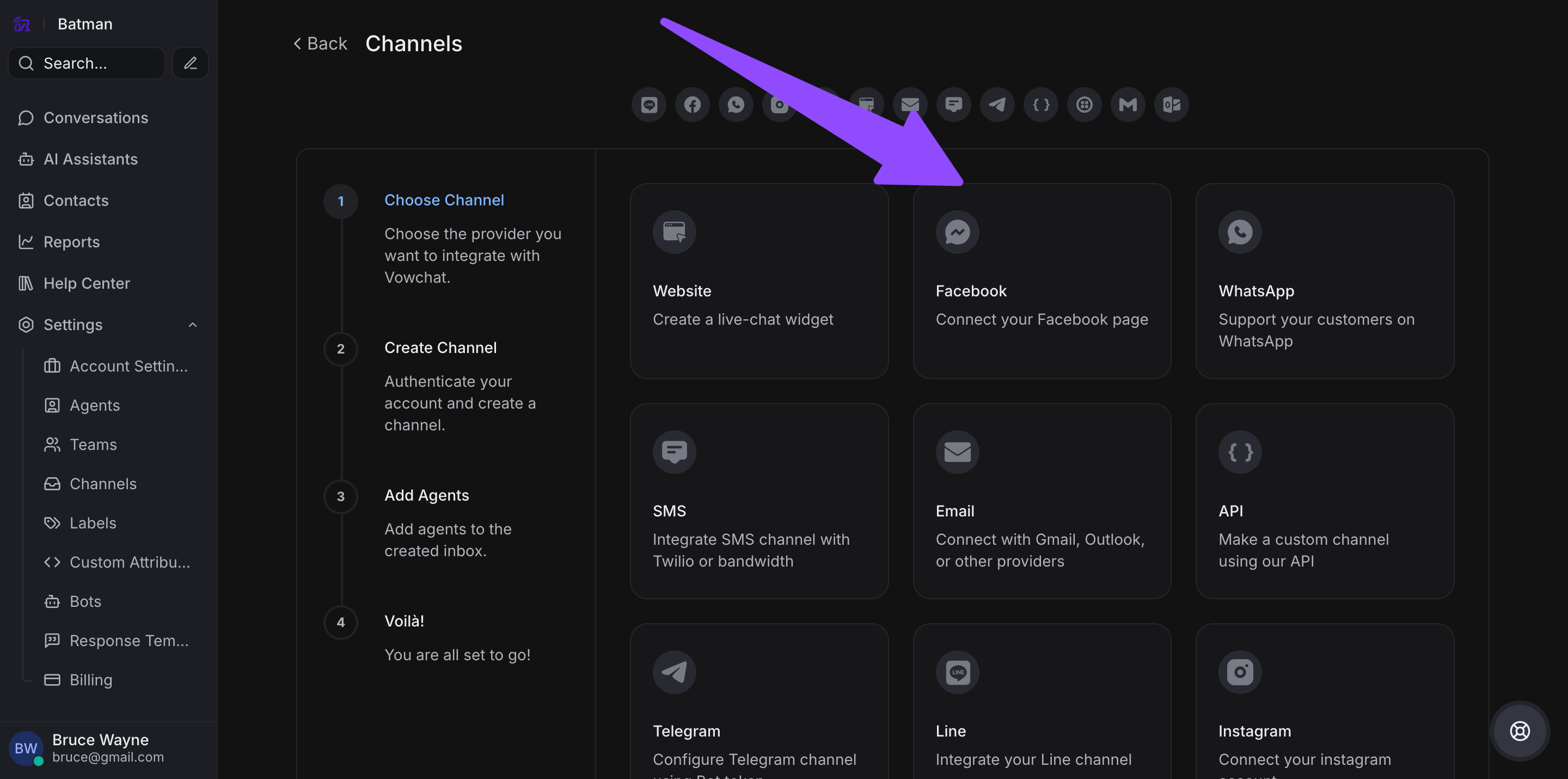
Step 1. Go to Settings → Channels → "Add Channel".

Step 2. Click on the "Messenger" icon.
Step 3. Click the Facebook login button. It will open a new window for you to login.
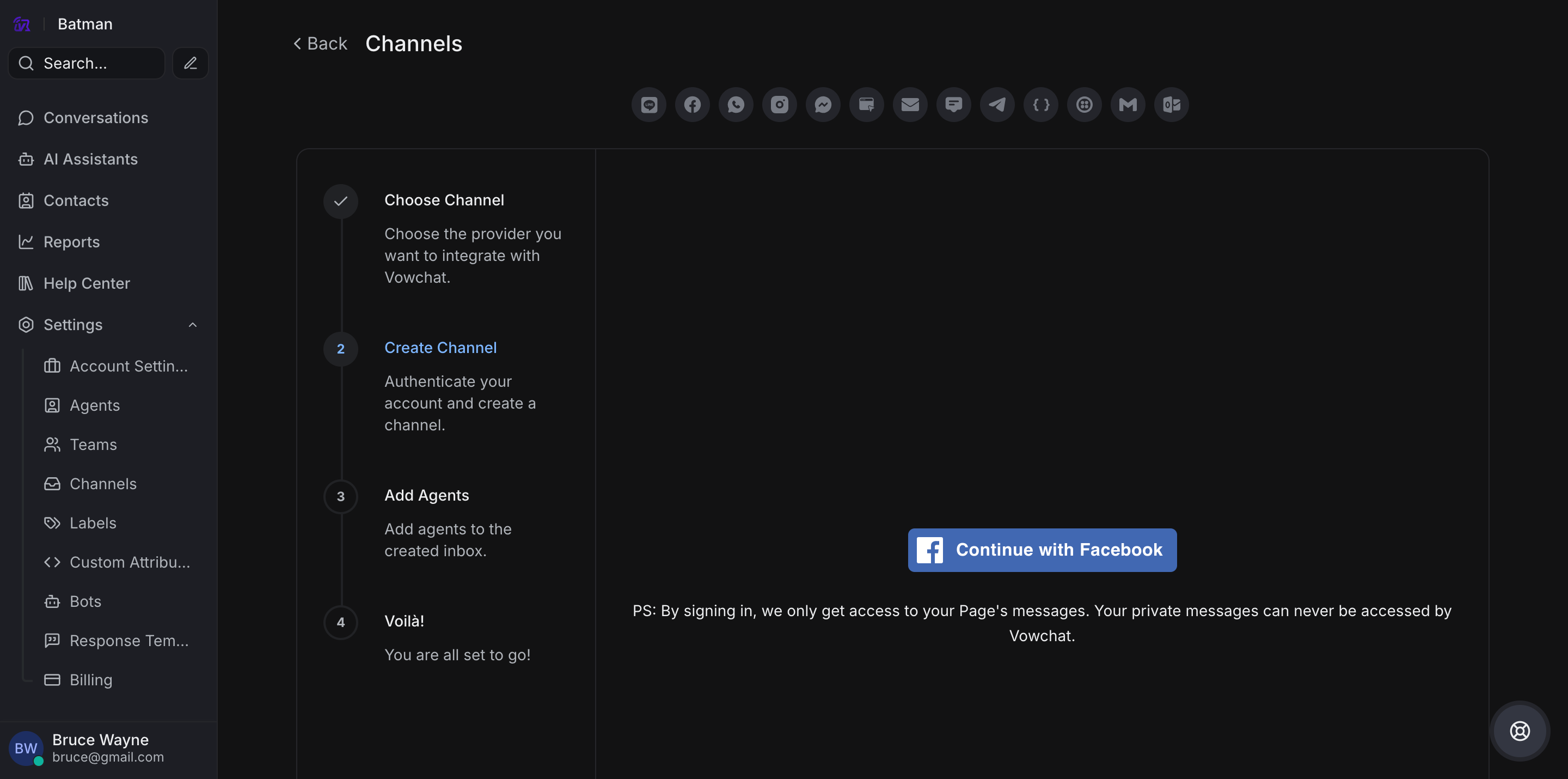
Step 4. Authenticate with Facebook and select the page you want to connect.
Enable all permissions shown in the list. This will help VowChat to perform all the desired actions smoothly.
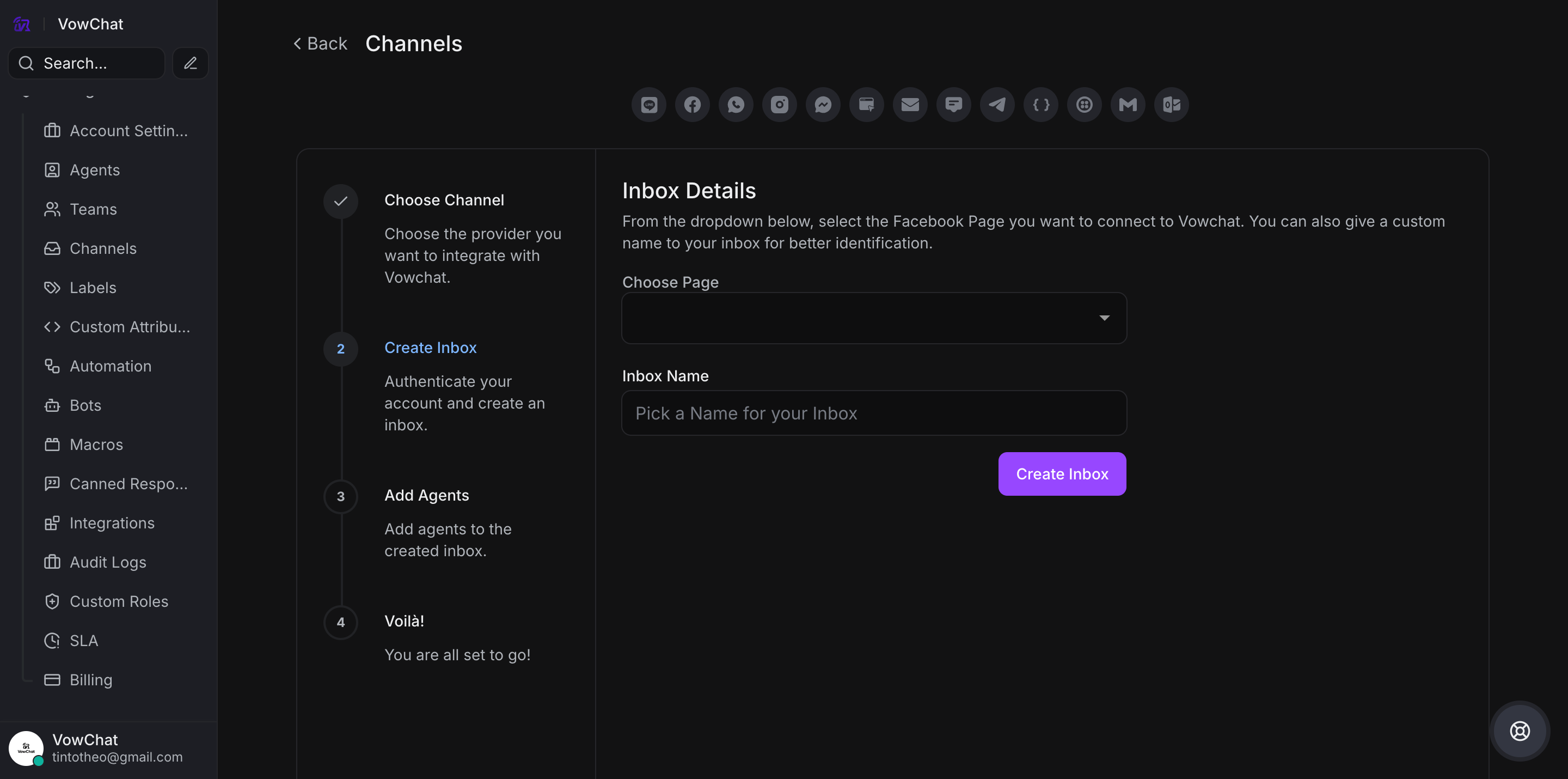
Step 5. You can now select your Facebook page from the dropdown menu that appears on VowChat.
Step 6. "Add agents" to your Facebook channel.
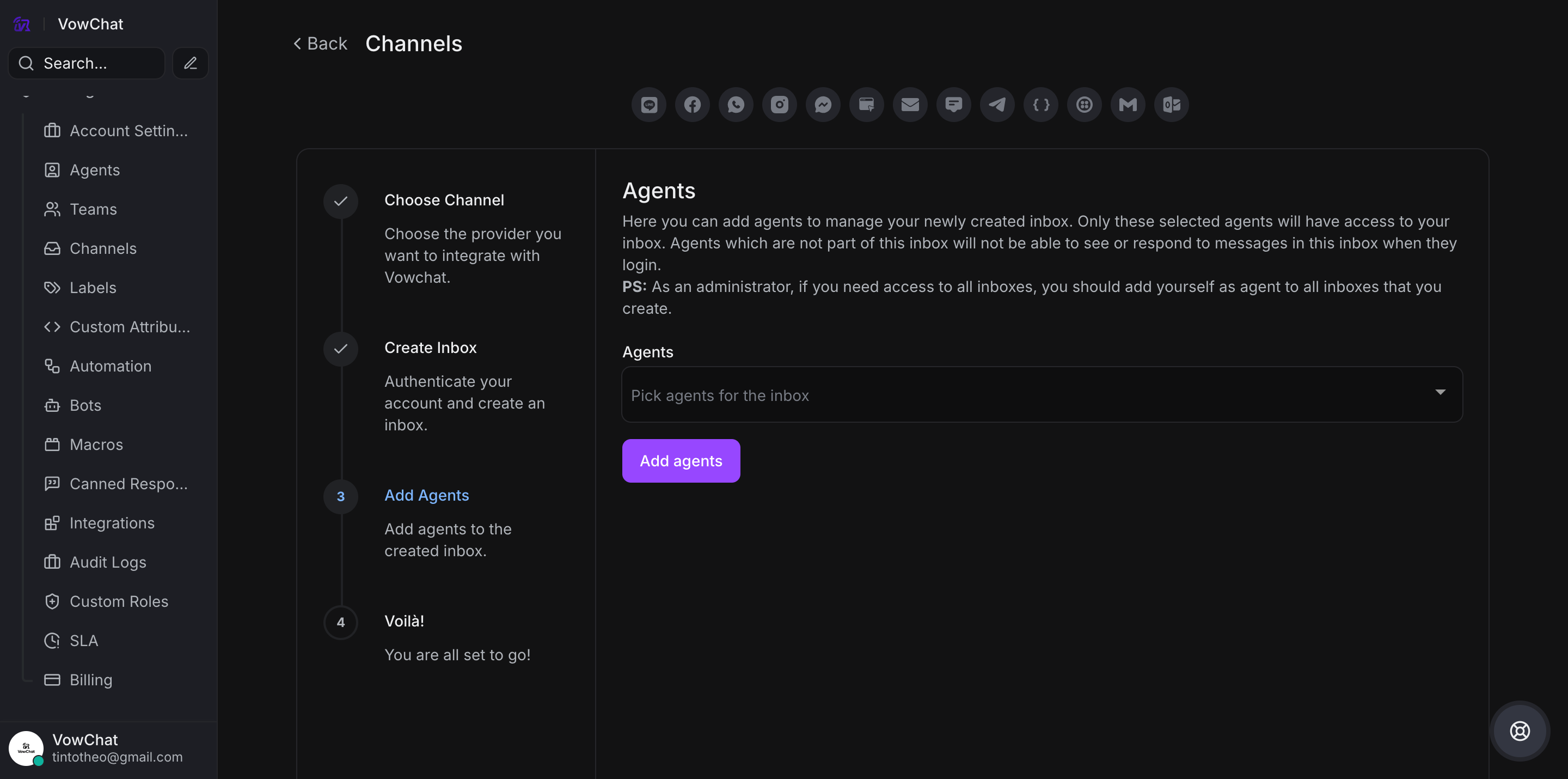
You have successfully created a Facebook channel. Whenever a customer sends a message to your Facebook page, you will be able to see and reply to it in VowChat.
Additional Channel settings
Your freshly configured Facebook channel should now appear in your list of channels. To see this and to make additional settings in your Facebook channel, go to Settings → Channels → click the gear icon on the associated Facebook channel.
Settings tab
Enable channel greeting. Once you enable this, VowChat will send a greeting message to new conversations created through your Facebook channel.
Enable CSAT. Once you enable this, your Customer Satisfaction survey will be launched every time a ticket is resolved. The CSAT results can be viewed later in the Reports section.
Reauthorize. Whenever you need to reauthorize your Facebook connection, you can do so from this section.
Collaborators tab
In the Collaborators tab, you can:
-
Add Agents to the Channel or delete Agents who have been already added in the Channel
-
Enable or disable automatic assignment of new conversations to channel agents
To save changes, click "Update".
Business Hours tab
In the Business Hours tab, you can:
-
Set working hours for the team associated with the Facebook channel
-
Enable business availability by checking the box
-
Write a custom message displayed during off-business hours
-
Select available business hours for each week day
-
Choose the appropriate time zone
To finalize settings, click "Update Business Hour Setting Button".